

Widgets
A widget shows your topics’ content on your website. You set it up in the dashboard, then paste a short snippet into your page. Changes you make later reach your site without touching the snippet again.
Widget types
Section titled “Widget types”| Type | What it looks like | Best for |
|---|---|---|
| Multi Widget | A modern feed with a choice of layouts (see below). Refreshes itself while open. Can show interactives and live scores between items. | Most pages |
| Vertical widget | A single column of cards with Load More. | Sidebars |
| Horizontal widget | A row of cards you swipe or scroll. | Strips above or below articles |
| Fullpage widget | A grid of 1 to 3 columns with a Menu to switch between the widget’s topics. | A dedicated content page |
| Youtube widget | A full-size player that plays the topic’s YouTube videos one after another. Can show odds and live match animations. | Video pages |
| Match Centre | Live football scores, events, line-ups and stats for chosen matches. | Match pages |
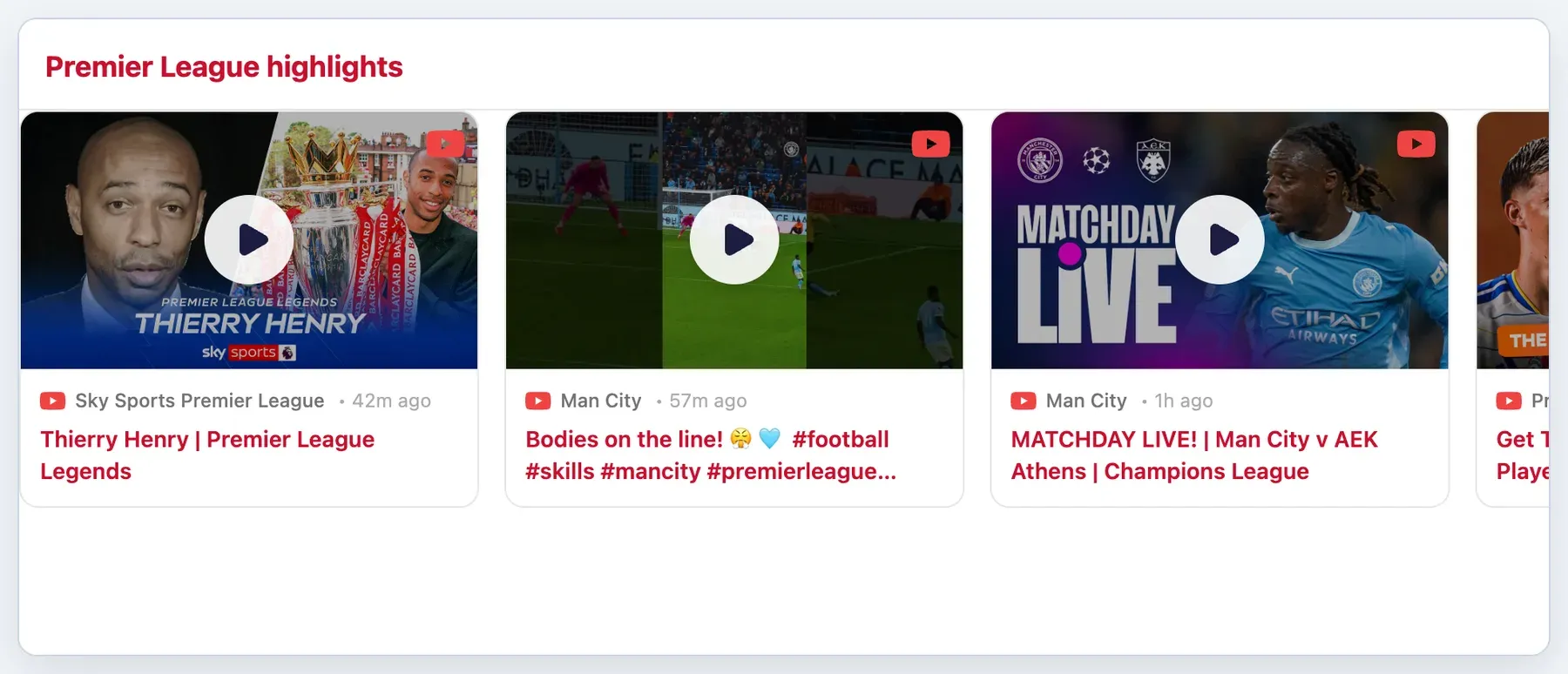
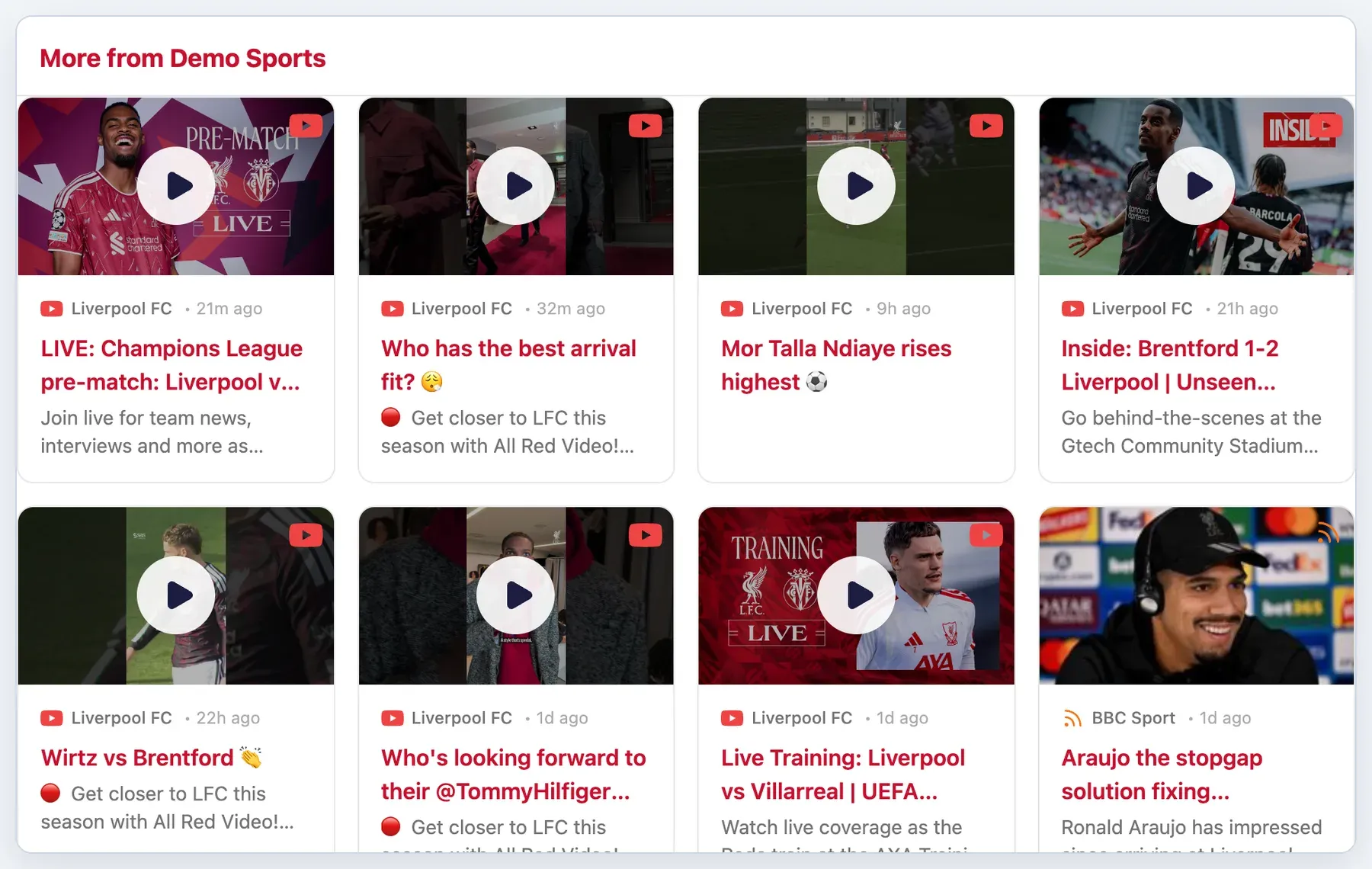
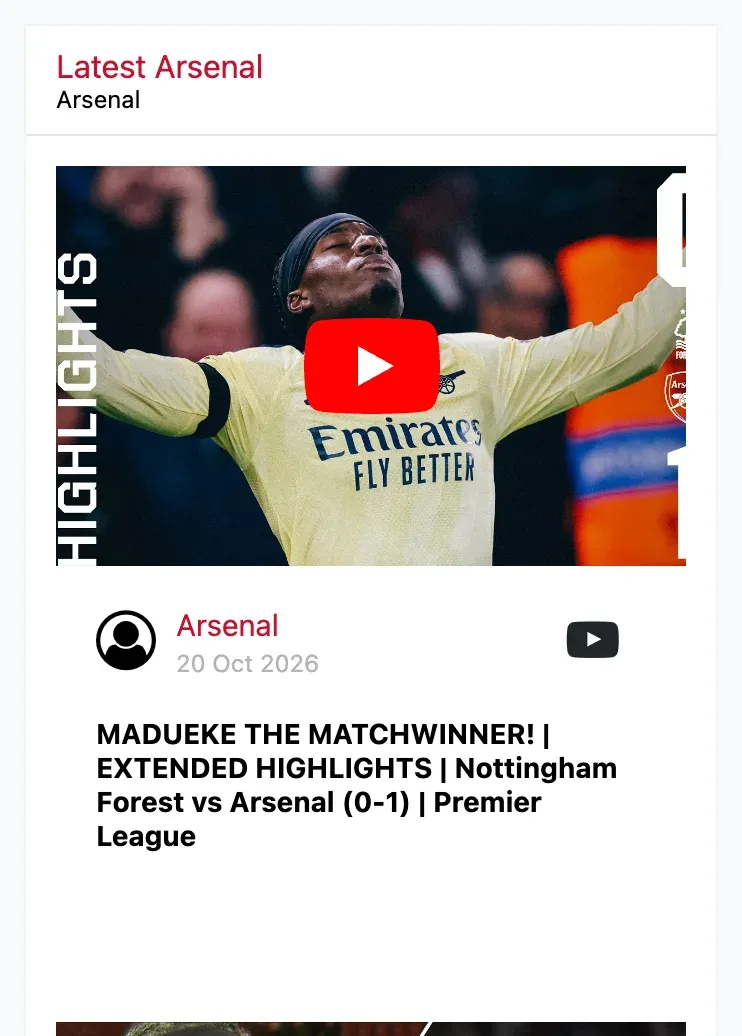
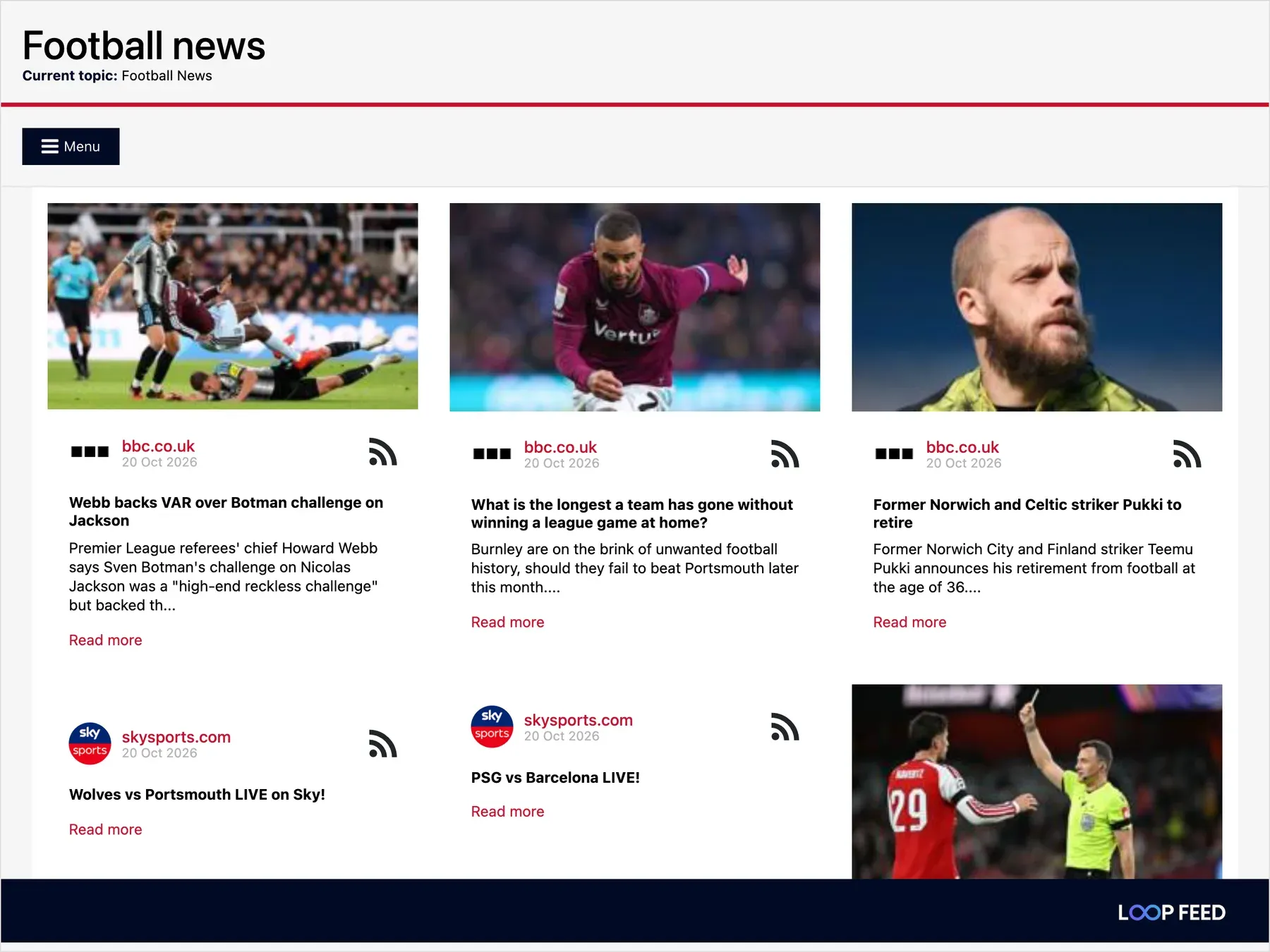
Multi Widget layouts
Section titled “Multi Widget layouts”| Layout | What it looks like |
|---|---|
| Grid Layout | Cards in 1 to 4 columns, depending on the space available. |
| List Layout | Compact rows with a thumbnail. |
| Mosaic Layout | Tiles of different sizes, with featured tiles. |
| Waterfall Layout | A masonry grid of 1 to 4 columns. |
| Carousel Layout | A row of cards that snap into place as you scroll. |
| Stack Layout | Overlapping cards you swipe through. |
| Shorts Layout | A row of vertical YouTube cards. Shows YouTube items only. |
| Shorts Ad (300×600) | A fixed 300×600 unit that plays YouTube items muted, one after another, with an optional banner below. |
| Video Ad (300×250) | A fixed 300×250 unit that plays YouTube items muted, one after another. |
Grid, List, Mosaic and Waterfall load more items as the reader scrolls. On phones, tapping an item opens it full screen. On desktop it opens in a window with a link to the original post.
Create a widget
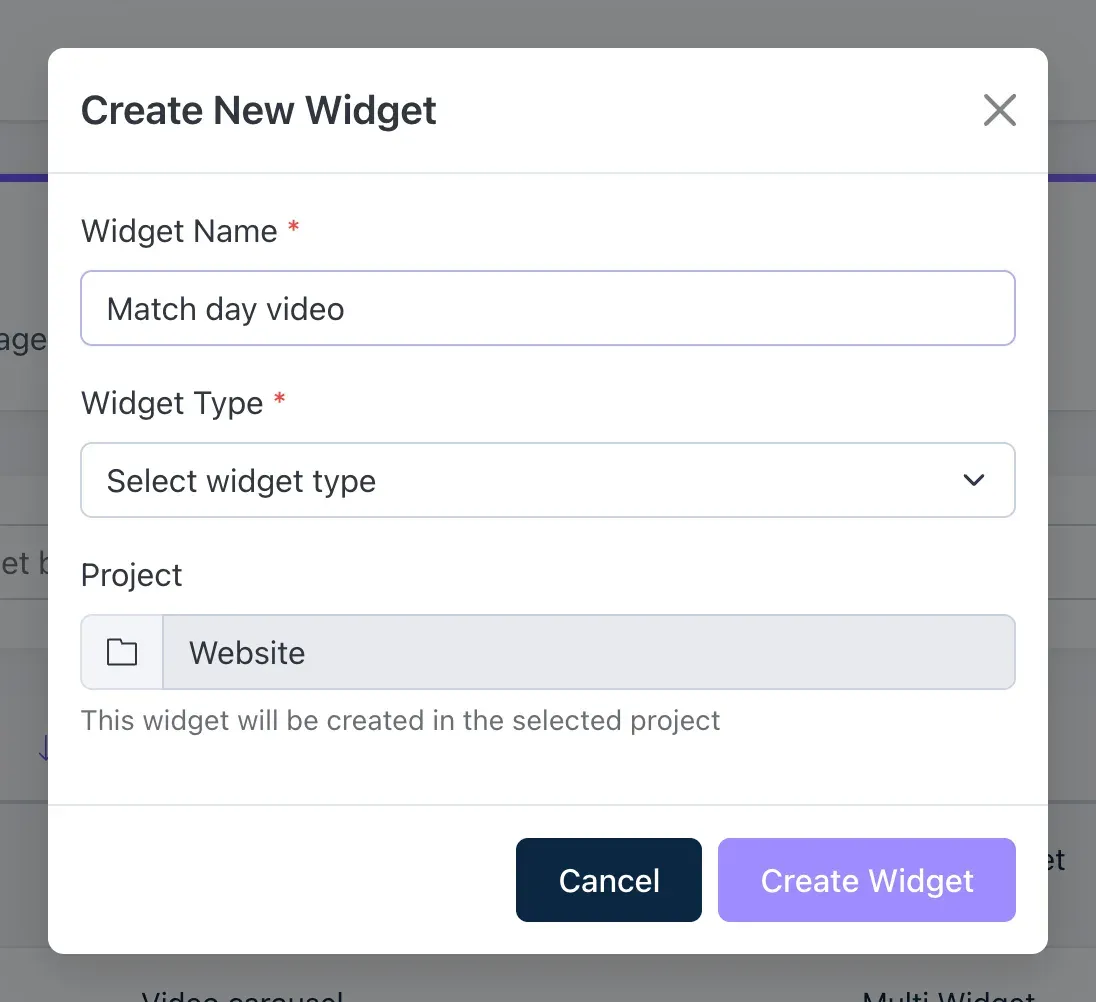
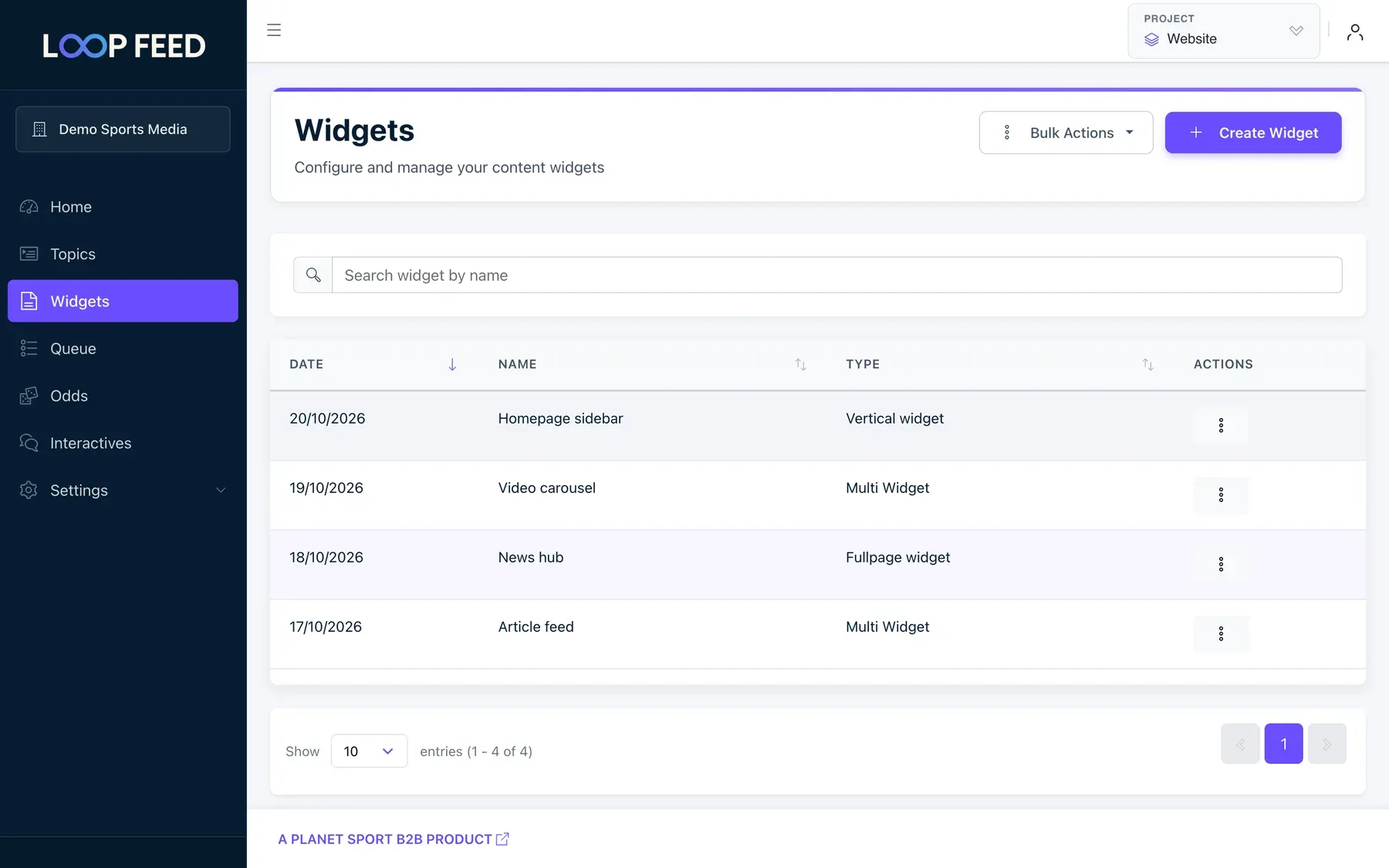
Section titled “Create a widget”- Open Widgets and click Create Widget.
- Enter a Widget Name (for your team; readers don’t see it) and choose a Widget Type.
- Click Create Widget. The widget opens on its Details tab.
Details
Section titled “Details”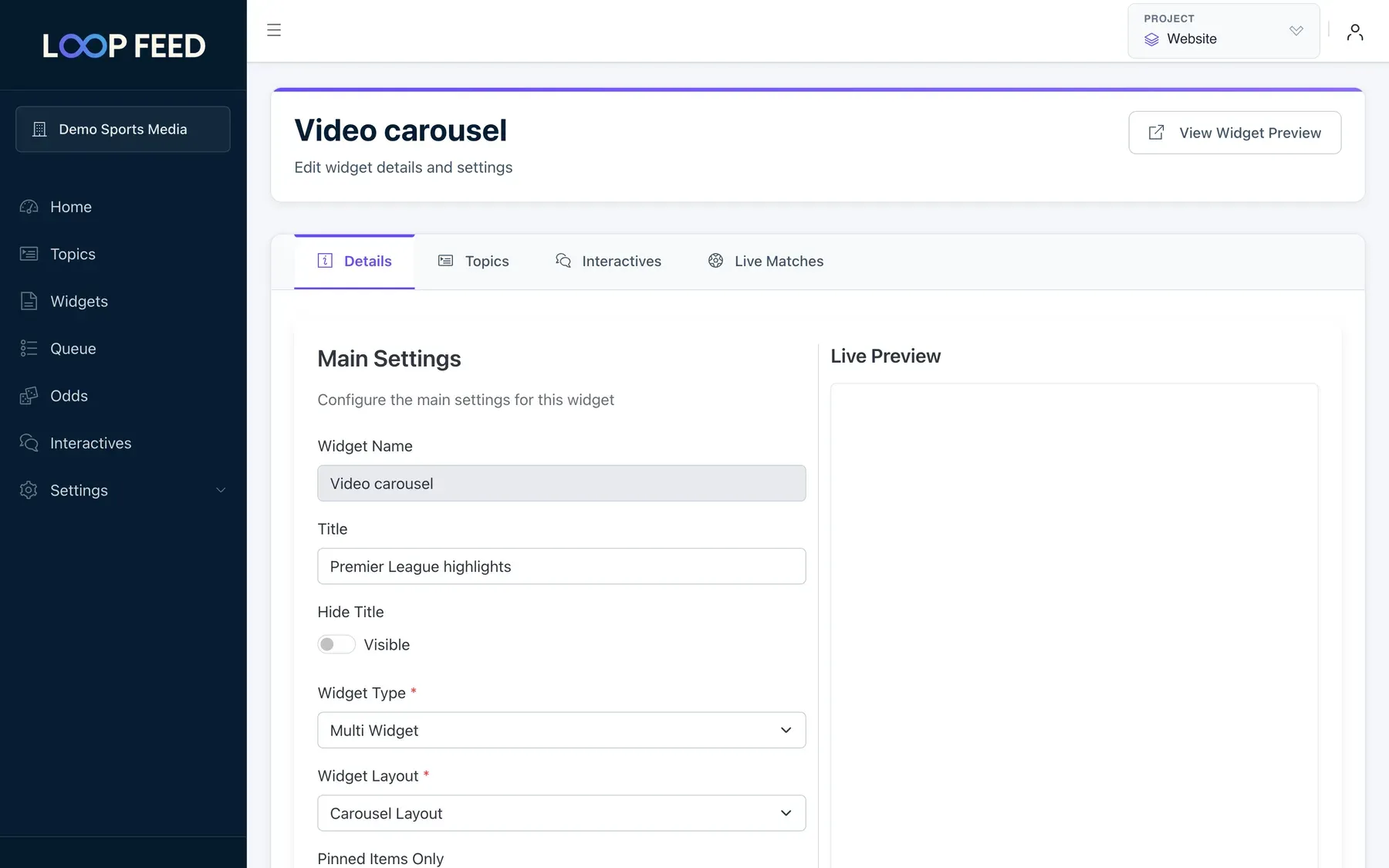
| Setting | Widgets | What it does |
|---|---|---|
| Title | All but Youtube and Match Centre | The heading shown above the content. |
| Hide Title | All but Youtube and Match Centre | Hides the heading. |
| Widget Type | All | You can change the type later. Readers see the new type the next time the widget loads. |
| Widget Layout | Multi Widget | One of the layouts. |
| Pinned Items Only | Multi Widget | Shows only the topic’s pinned items, in your order. |
| Number of Posts | Multi Widget, Fullpage | How many items load at a time: 12 or more. |
| Background Color | All but Youtube | The widget’s background. |
| Links Color | All but Youtube | The colour of titles, links and buttons. Match Centre uses it as its accent colour. |
| CTA Banner | Multi Widget, Shorts Ad layout | An image below the video (300×100 recommended, up to 5 MB), a CTA URL for clicks (empty means the current video’s page), and a Banner Accent Color. The image uploads as soon as you choose it. |
Click Save Changes. To see the saved widget on its own page, click View Widget Preview. Multi Widget and Match Centre also show a Live Preview next to the settings.
Topics
Section titled “Topics”On the Topics tab, tick the topics the widget shows and click Save Changes. A widget needs at least one topic. Match Centre has no topics.
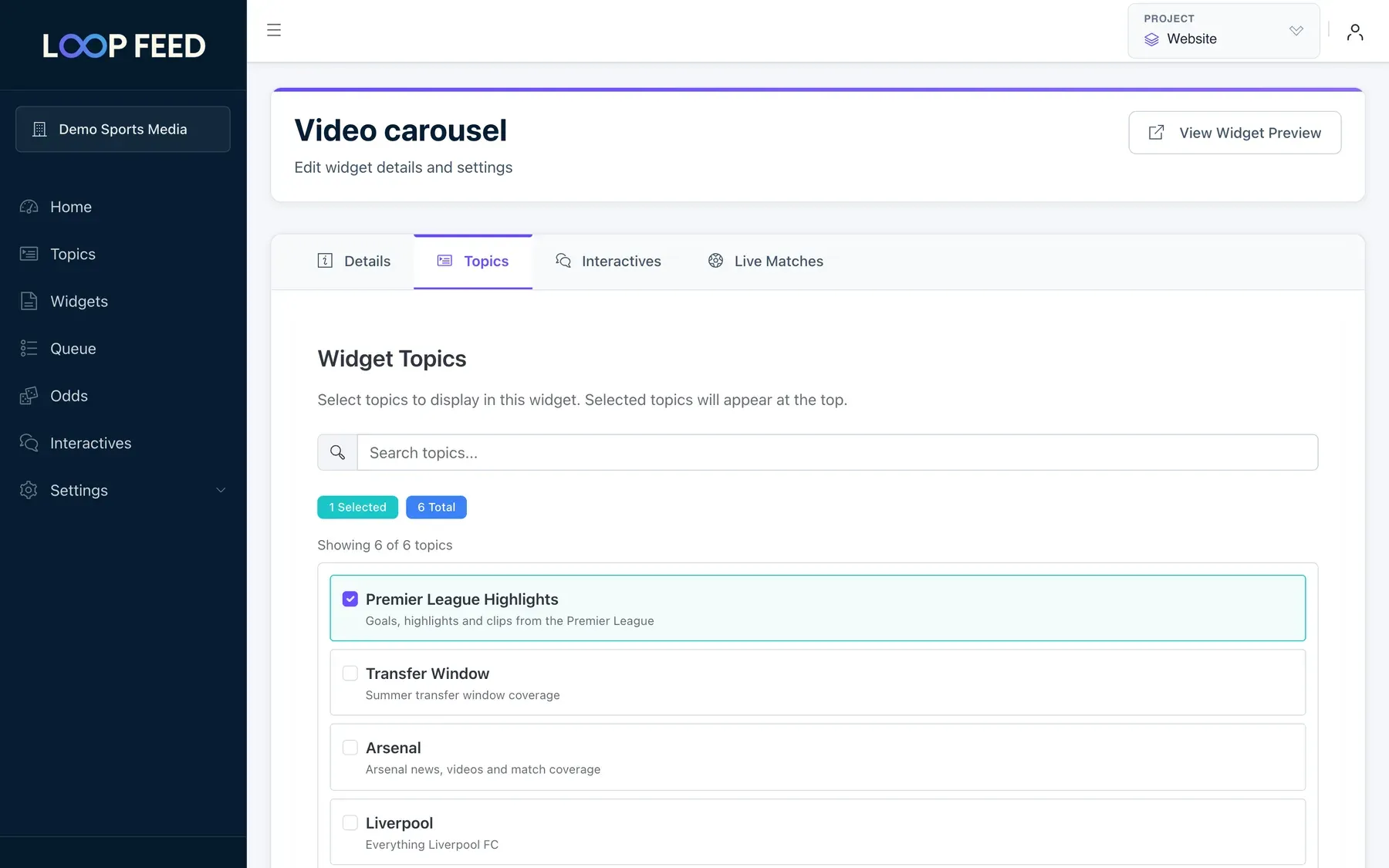
- Fullpage widgets show all their topics, with a Menu for readers to switch between them.
- Every other type shows the first topic you selected. To show several topics in one feed, create a topic that combines their sources.
Embed the widget
Section titled “Embed the widget”At the bottom of the Details tab, Widget Embed Code has your snippet. Click Copy and paste it into your page’s HTML where the widget should appear:
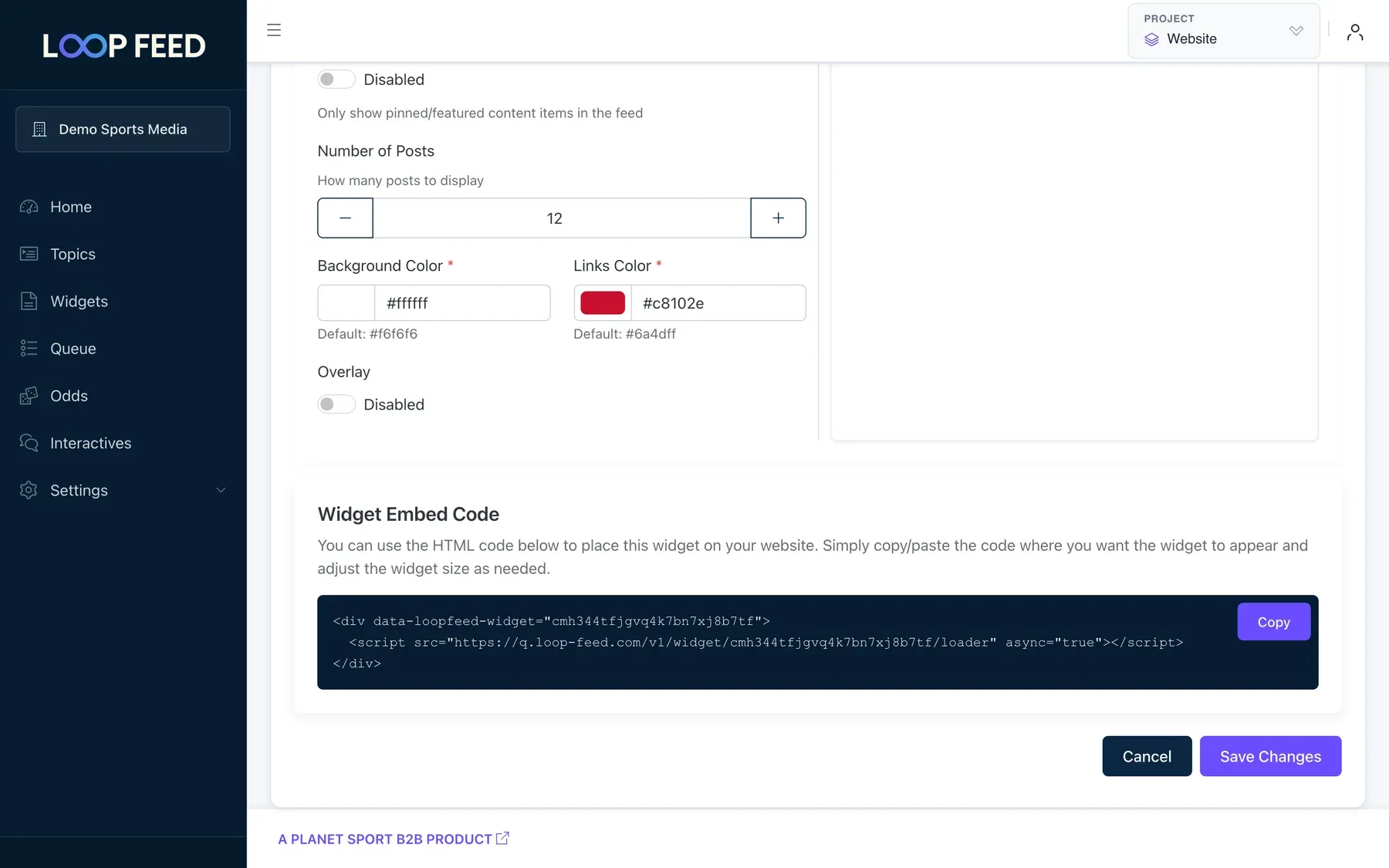
<div data-loopfeed-widget="your-widget-id"> <script src="https://q.loop-feed.com/v1/widget/your-widget-id/loader" async="true"></script></div>- The widget fills the width of its container. Most layouts grow with their content. Give the container a fixed height to make the widget scroll inside it instead.
- Use each widget once per page. To show the same content twice, create a second widget.
- Settings changes can take up to 5 minutes to reach readers who’ve already loaded the widget.
- In a CMS such as WordPress, add the snippet with an HTML or custom code block, not the visual editor.
Match Centre
Section titled “Match Centre”Match Centre shows live football matches: score, goals and cards, line-ups, live updates and stats. It shows a countdown before kick-off and keeps the final result for a while afterwards.
Choose the matches
Section titled “Choose the matches”On the Details tab, under Match Centre:
| Setting | What it does |
|---|---|
| League (optional) | Follow a competition’s current season. |
| Season (optional) | A particular season of the league. |
| Team (optional) | Follow one team in every competition it plays. |
| Countdown Window (minutes) | How long before kick-off a match is shown: 1 to 10,080. Default 2,880 (2 days). |
| Keep Final Result (hours) | How long a finished match stays: 1 to 168. Default 24. |
| Show Updates, Show Commentary, Show Lineups, Show Stats, Show Score Event Strip | Which panels readers can open. Line-ups appear once they’re confirmed. |
League, Season and Team combine: for example, a team and a league show that team’s matches in that league. To pick matches by hand instead, use the Live Matches tab: click Add Match, choose a date, find the match and click Select ›. Turn on Keep this match focused to show it first. Hand-picked matches take priority over the automatic ones.
When several matches qualify, Match Centre shows the focused ones first, then a live match, then the next match to start, then the most recent result. Readers can step between matches.
Embed options
Section titled “Embed options”Below the embed code you can set:
- Match ID override (optional): comma-separated match IDs, up to 20. This page then shows these matches instead of the widget’s own, so one widget can serve every match page. To get an ID, use Copy ID when you add a match on the Live Matches tab.
- Embed dimensions: Responsive (fills its container, which then needs a height), or a fixed size: 728×90, 300×250, 650×250 (leaving room for your own 300×250 ad), 900×250 or 300×600.
- Isolate widget styles in an iframe: keeps your site’s styles and the widget’s apart.
These options are added to the snippet, for example:
<div data-loopfeed-widget="your-widget-id"> <script src="https://q.loop-feed.com/v1/widget/your-widget-id/loader?match_ids=568774&size=900x250" async="true"></script></div>Extras for Multi Widget
Section titled “Extras for Multi Widget”- Interactives: add polls, quizzes and predictions to the feed. For each one, set Frequency (every N items): it appears once, after that many items.
- Live Matches: add live score units to the feed. Click Add Match, find the football match, set Frequency and Start Date/Time, and optionally Expires At and post-match Stats and Timeline. Each unit shows a countdown before kick-off, the live score during the match and the result afterwards.
Extras for the Youtube widget
Section titled “Extras for the Youtube widget”- Odds: choose an odds configuration to show over the video.
- Matches: tick upcoming matches to show a live match animation while they’re played. For each one, you can
add YouTube watchalong links for the home team, the away team and your own channel. Links must start with
https://www.youtube.com/watch?v=.