

Queue
The queue is a topic’s content, newest first. What you do here decides what your widgets and the Content API show.
Open a queue
Section titled “Open a queue”- From a topic: click View Queue.
- From the sidebar: open Queue and click a topic.
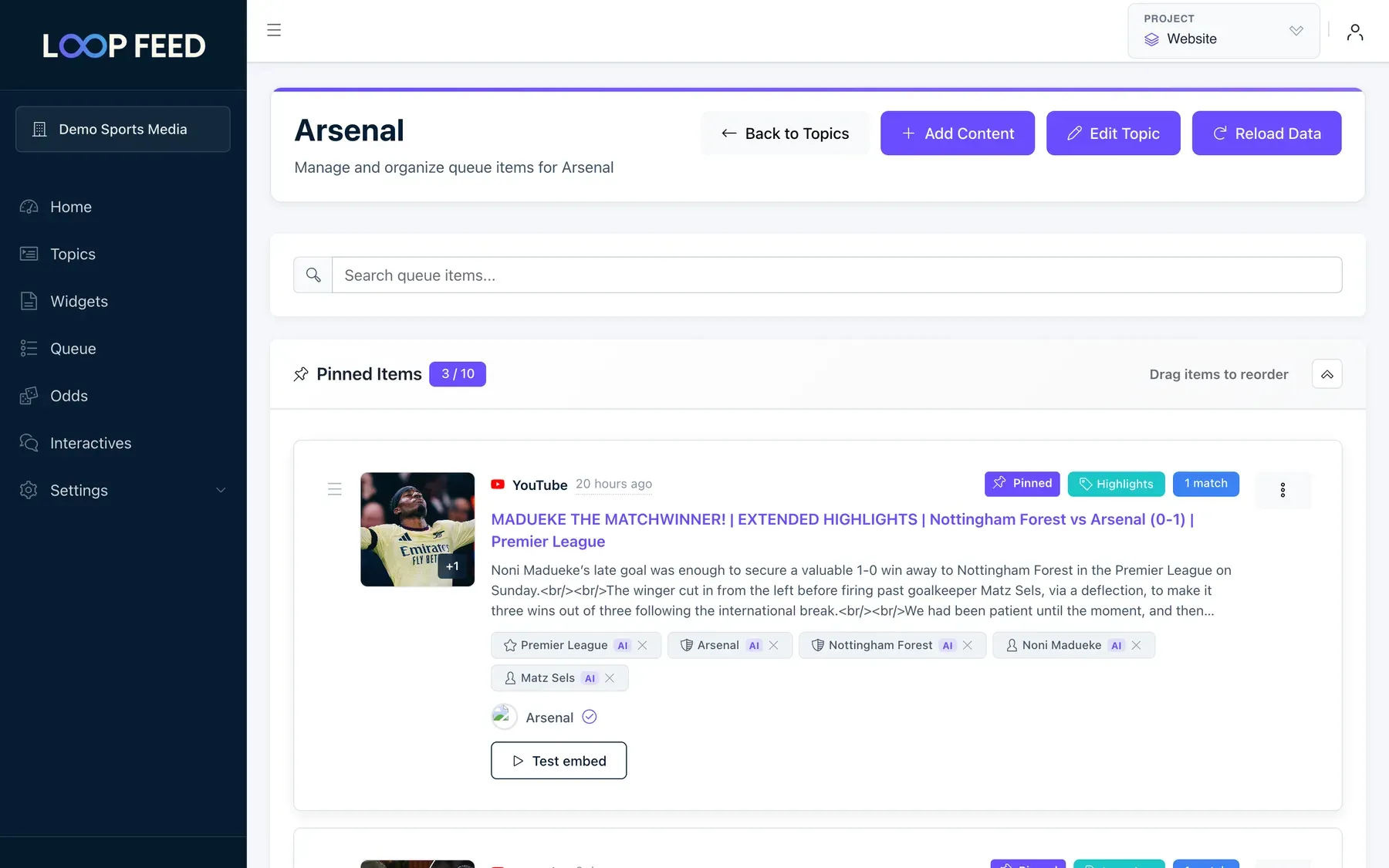
At the top:
| Button | What it does |
|---|---|
| Back to Topics | Back to the topic list. |
| Add Content | Add YouTube videos or your own stories. See Add content. |
| Edit Topic | Open the topic’s settings. |
| Reload Data | Load the latest items. |
Use Search queue items… to find items by title, text or author.
Pinned items
Section titled “Pinned items”Pinned items always come first in your widgets and the API, in the order you set. A topic can have up to 10. The badge shows how many you’ve used, for example 3 / 10.
- Pin: open an item’s ⋮ menu and choose Pin Item. New pins go to the end of the list.
- Reorder: drag a pinned item by its ☰ handle.
- Unpin: choose Unpin Item from its ⋮ menu.
Click the arrow on the right to collapse the pinned section. The queue remembers that choice.
All items
Section titled “All items”Below the pinned items is every item in the topic, newest first. Use Filter by to narrow the list:
- Platform: YouTube, Instagram, RSS, Twitter or Manual. With YouTube, you can also choose channel, playlist or user sources.
- Content type: with AI curation, for example Highlights only.
Click × to clear the filters. Use Show at the bottom to change how many items a page shows.
What’s on an item
Section titled “What’s on an item”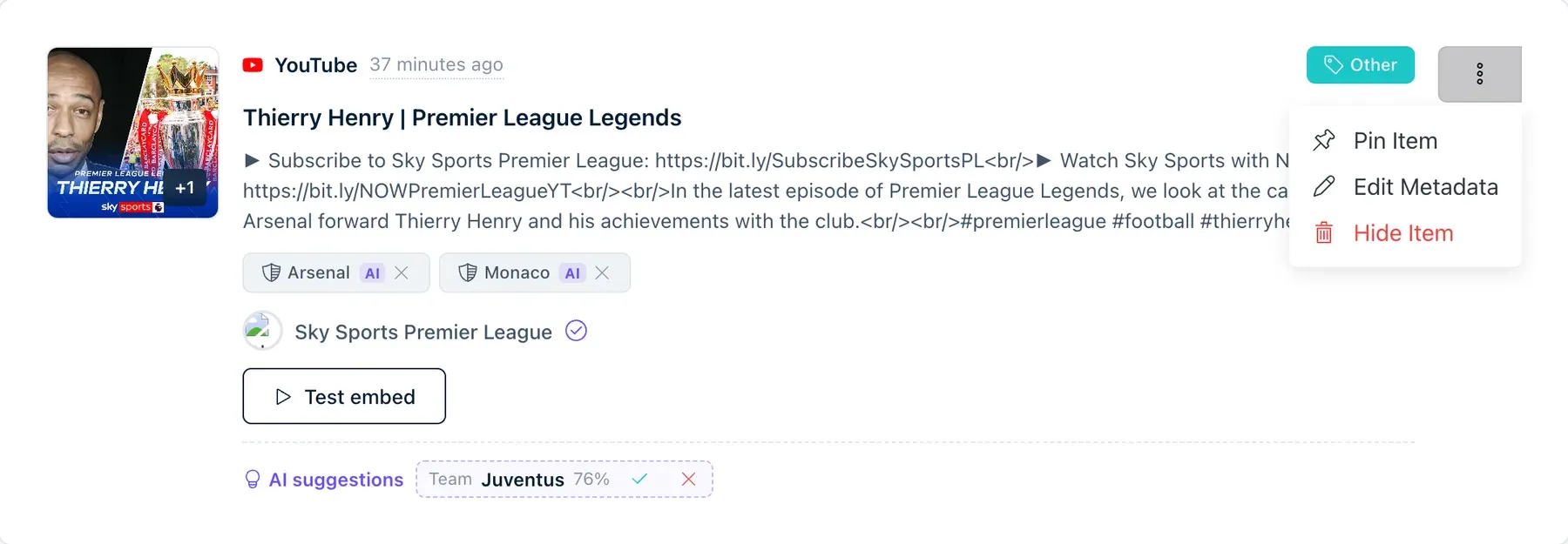
- Platform and time: where the post comes from and when it was published. Hover over the time to see the exact date.
- Badges: Pinned, Hidden, and with AI curation the content type (green), the match (blue), and AI pending while the AI is still working.
- Teams, players and competitions the post is about. AI marks the ones the AI added.
- AI suggestions to confirm or reject. See AI curation.
- Test embed (YouTube only): plays the video the way your widget will. Use it to check a video before you pin it. Some channels don’t allow their videos to play on other sites. The result is Plays embedded, Embedding blocked, Unavailable or Couldn’t determine.
Click an item’s picture, title or text to open the original post, or its author to open the author’s page.
Hide and show items
Section titled “Hide and show items”Hidden items stay in the queue, greyed out with a Hidden badge, but never appear in widgets or the API.
- Hide: open the item’s ⋮ menu, choose Hide Item and confirm.
- Show again: choose Show Item.
Add content
Section titled “Add content”Click Add Content to add items that didn’t come from the topic’s sources.
-
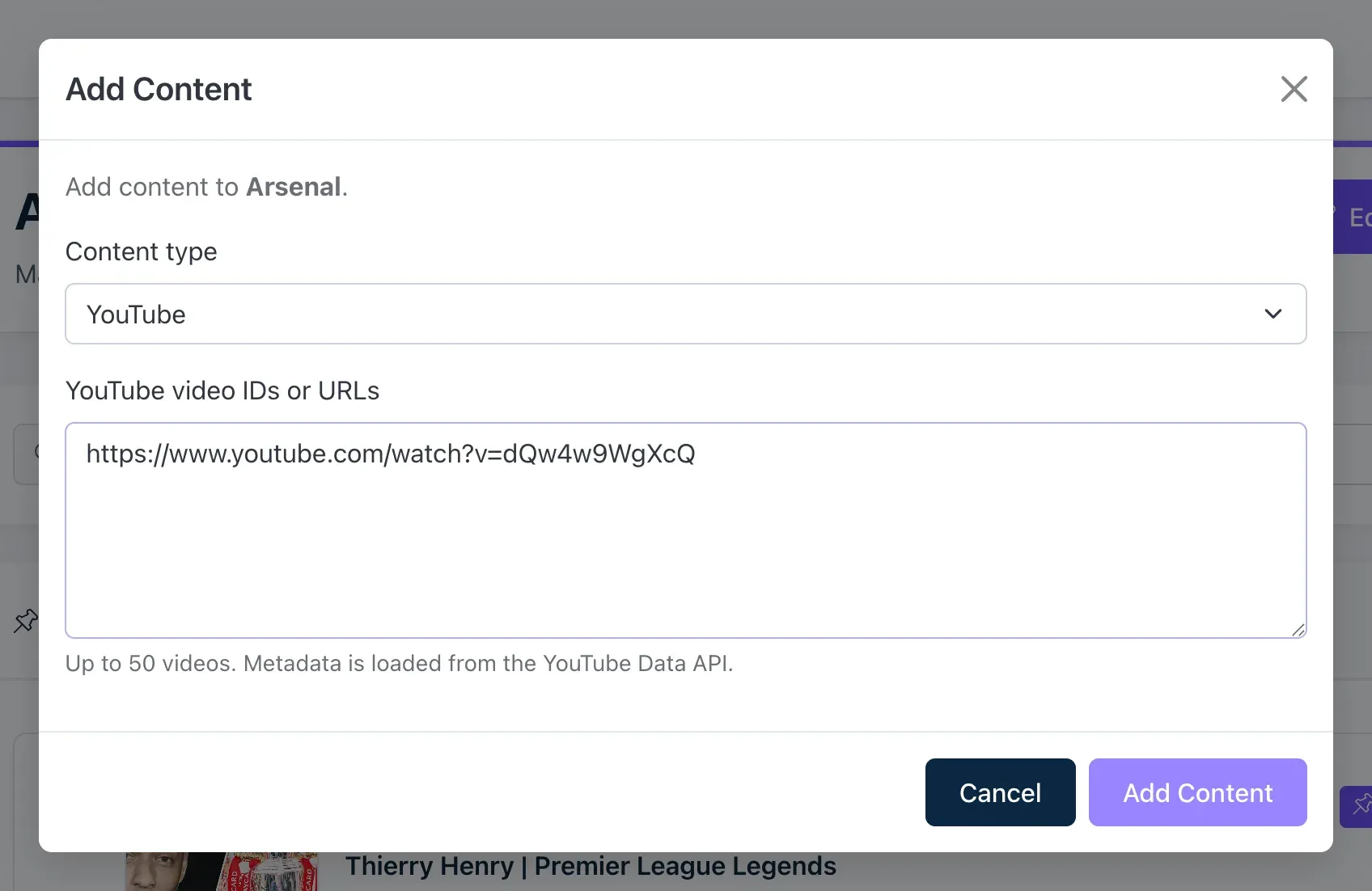
Choose the Content type:
- YouTube: paste up to 50 video links or IDs, one per line. LoopFeed loads each video’s title, description and picture from YouTube.
- Manual: your own story. Enter a Title, a Link (
https://…), an optional Description, the Author and the Publication date. You can add an Image up to 5 MB.
-
Click Add Content.
Added items follow the topic’s Display setting. If the topic is hidden, they arrive hidden. You can’t add content to an inactive topic.
Edit an item’s details
Section titled “Edit an item’s details”Open the item’s ⋮ menu and choose Edit Metadata. With AI curation, you can also click its content type or match badge.
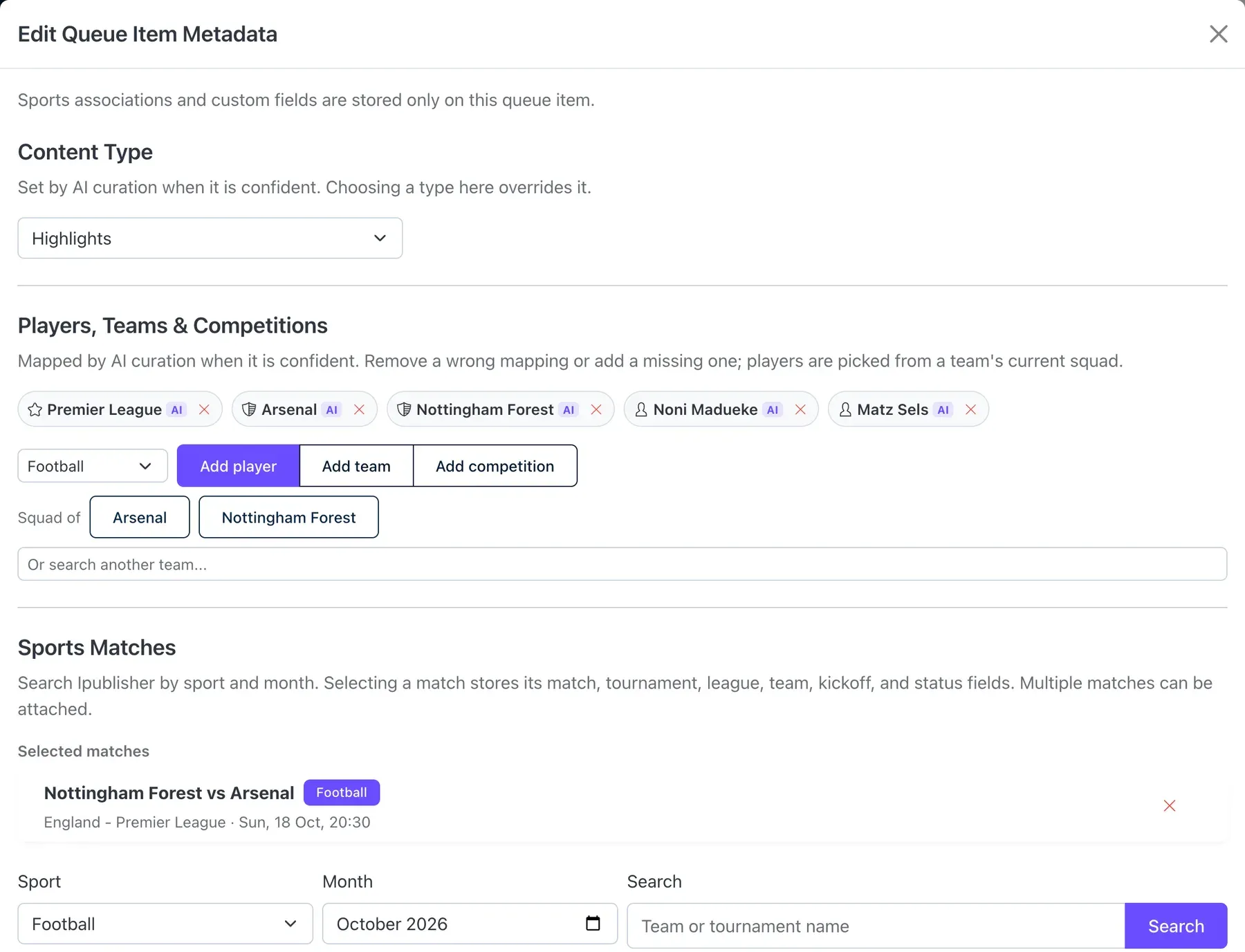
| Section | What you can do |
|---|---|
| Content Type | Set or change the item’s content type. |
| Players, Teams & Competitions | Remove a wrong one with ✕, or add one: choose the sport, then Add player, Add team or Add competition, and search. Players come from a team’s current squad. |
| Sports Matches | Attach the match the item is about: choose the sport and month, search, and click Add. |
| Custom Fields | Your own key and value pairs, returned with the item in the Content API. |
Content Type and Players, Teams & Competitions appear when your organization has AI curation.
Click Save Metadata. Your changes apply only to this item in this topic. With AI curation on, the AI never overwrites them.