

Interactives
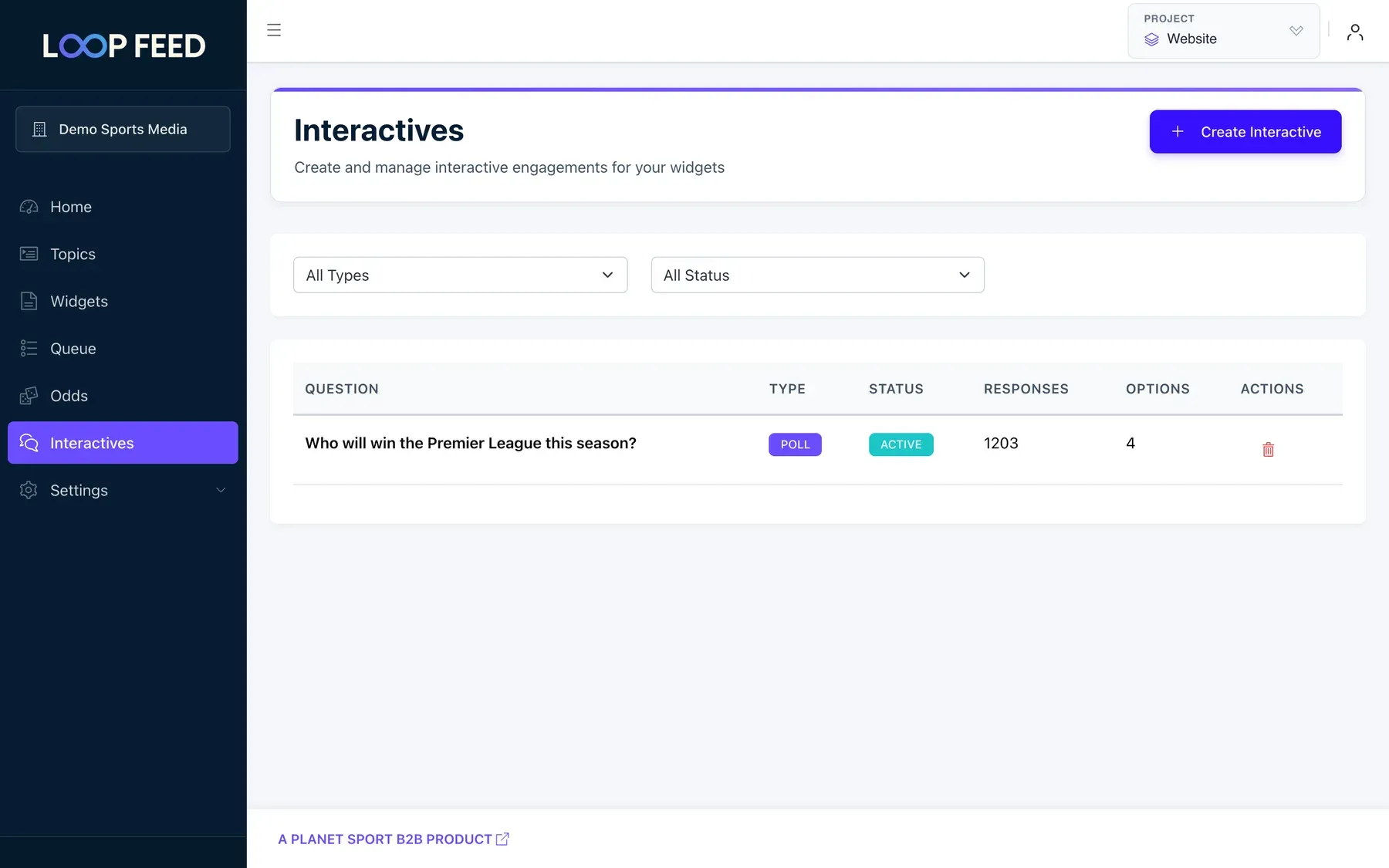
Interactives are short questions your readers answer inside a Multi Widget, such as a poll on the title race or a man of the match vote. Readers see the results after they answer.
| Type | What readers do |
|---|---|
| Poll | Choose one of 2 to 10 options. |
| Quiz | Pick the right answer from 2 to 10 options. You mark the correct one and can add an explanation. |
| Prediction | Predict an outcome, for example the result of a match. |
| Debate | Take one of two sides, each with its own emoji. |
| Reactions Pulse | React with one of 3 to 7 emojis. |
| Man of the Match | Vote for one of 2 to 30 players. |
| Ref Decision | Say whether a referee’s decision was right, optionally with a YouTube clip of the incident. |
Create an interactive
Section titled “Create an interactive”-
Open Interactives and click Create Interactive.
-
Under Details:
- Choose the Type. You can’t change it later.
- Optionally choose the Sport and link a Match, or a Tournament for polls and quizzes.
- Enter the question as the Title, and optionally a Description and, for quizzes, an Explanation shown after answering.
-
Add the Options: answers, emojis or players, depending on the type.
-
Under Settings, set the Status to Active, and choose when it Starts At and, optionally, Ends At.
-
Click Save.
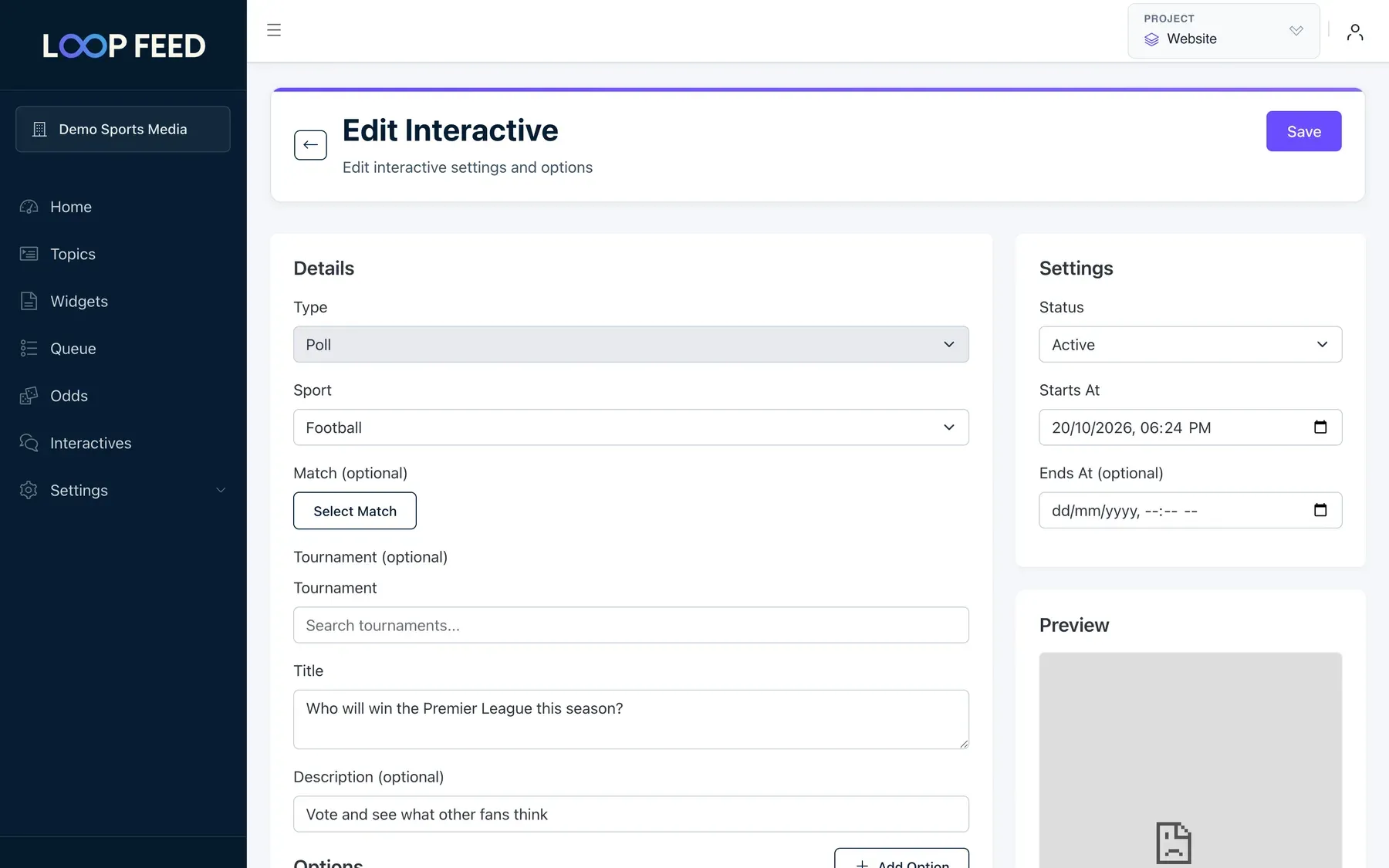
An interactive appears in widgets only while it’s Active, after its start time and before its end time. Set the status to Ended to stop new answers, or Draft while you’re still preparing it.
Add it to a widget
Section titled “Add it to a widget”Interactives appear in Multi Widgets:
- Open the widget and go to its Interactives tab.
- Tick the interactive.
- Set Frequency (every N items). The interactive appears once, after that many items. The default is 5.
- Click Save Changes.
The Responses column of the Interactives list shows how many readers have answered.