

Topics
A topic collects posts about one subject from the sources you choose, such as a club, a competition or a news desk. Each topic has its own queue, and widgets and the API show its content.
The topics list
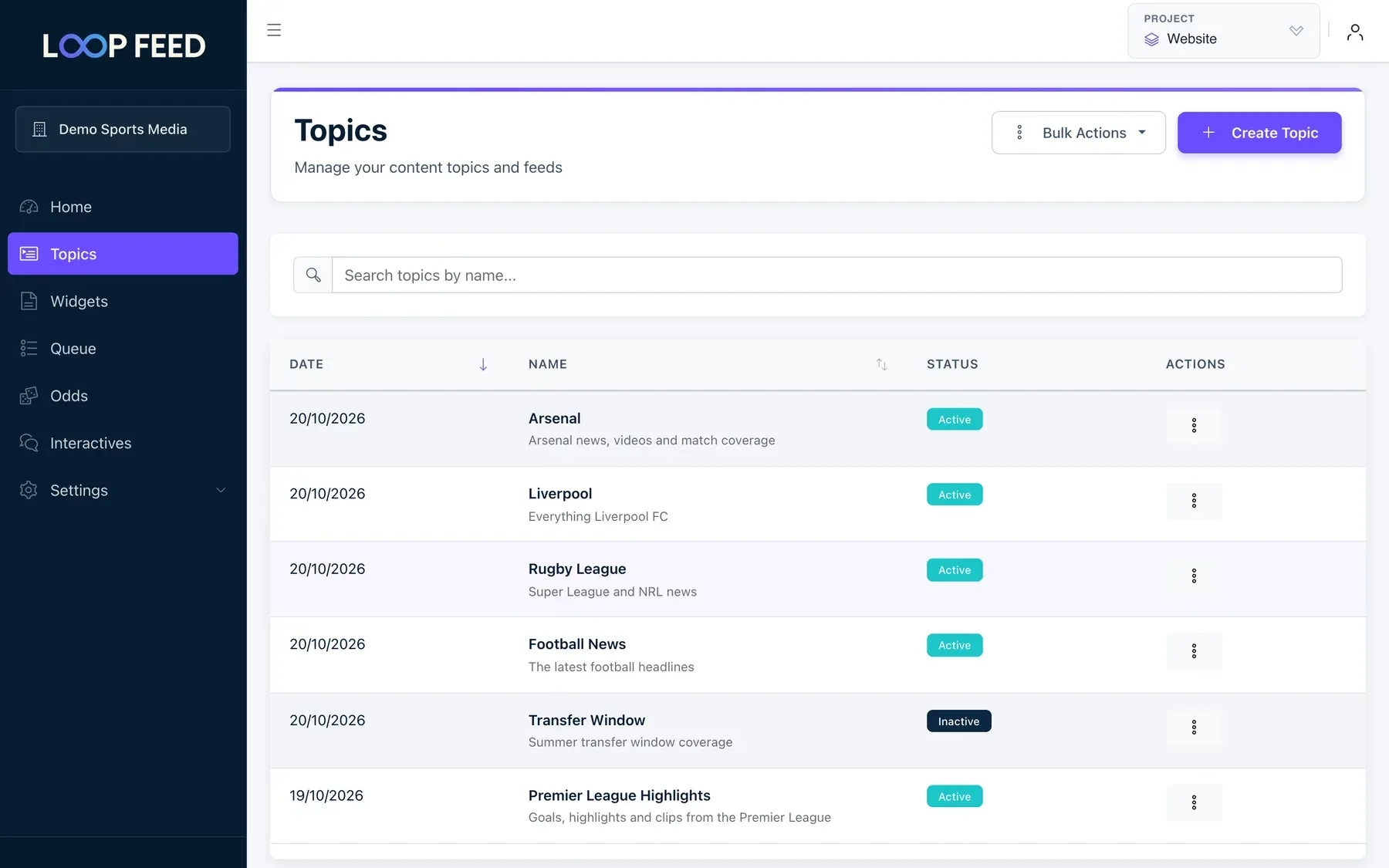
Section titled “The topics list”Open Topics in the sidebar to see the topics of the current project, last updated first. Search by name, or sort by date or name. Click a topic to edit it.
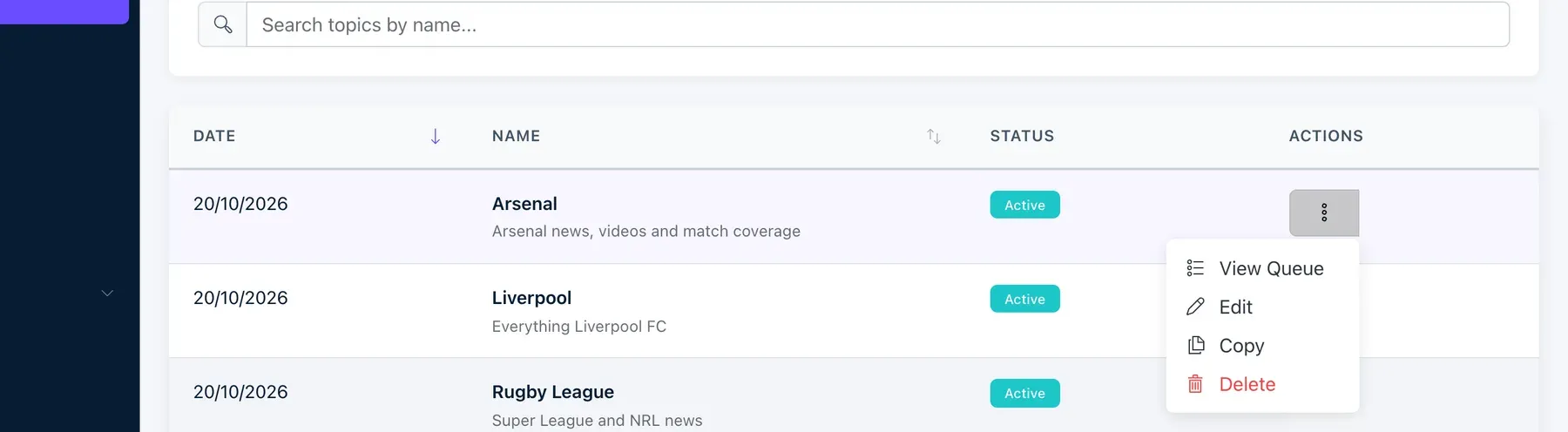
The ⋮ button on each row opens View Queue, Edit and Copy.
Create a topic
Section titled “Create a topic”- Click Create Topic.
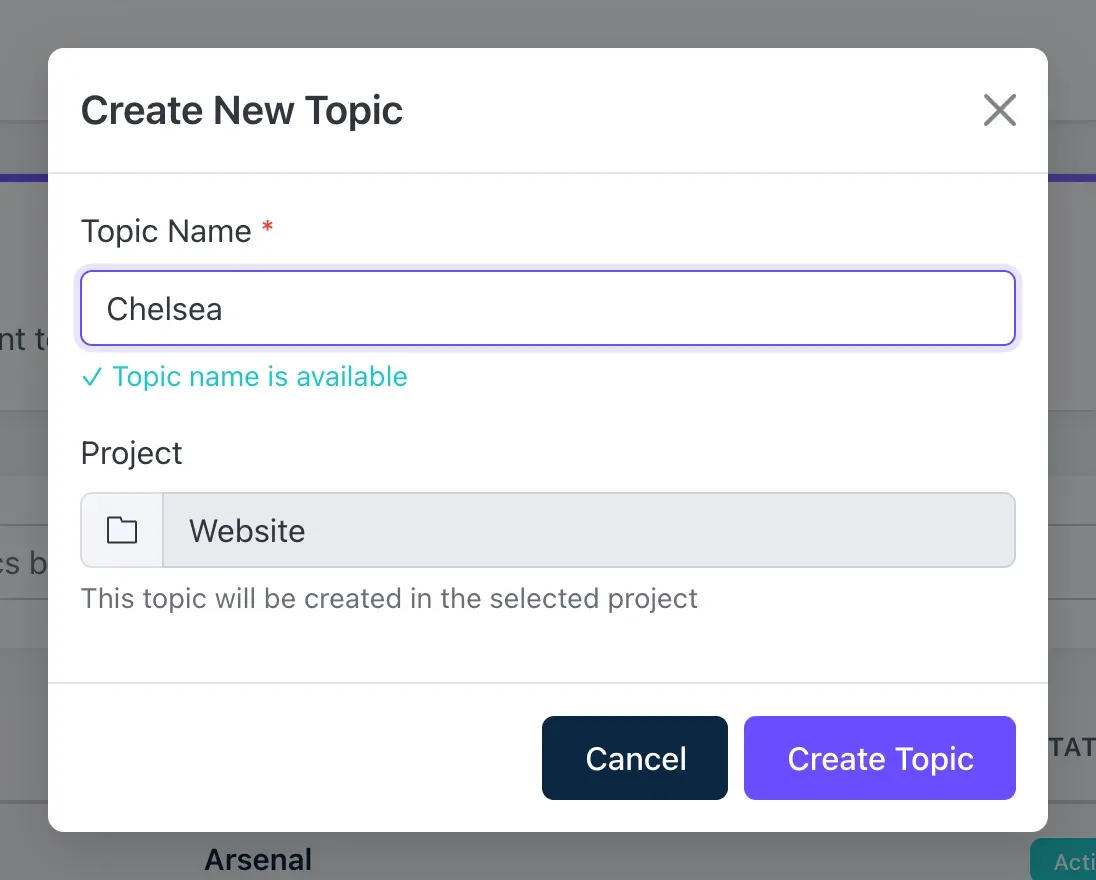
- Enter a Topic Name. It must be at least 3 characters and unique in the project. You’ll see ✓ Topic name is available when it is. You can’t rename a topic later.
- Click Create Topic. The new topic opens so you can add its sources.
A topic has four tabs: Details, Filters, Input Feeds and Whitelist. Each tab has its own Save Changes button.
Details
Section titled “Details”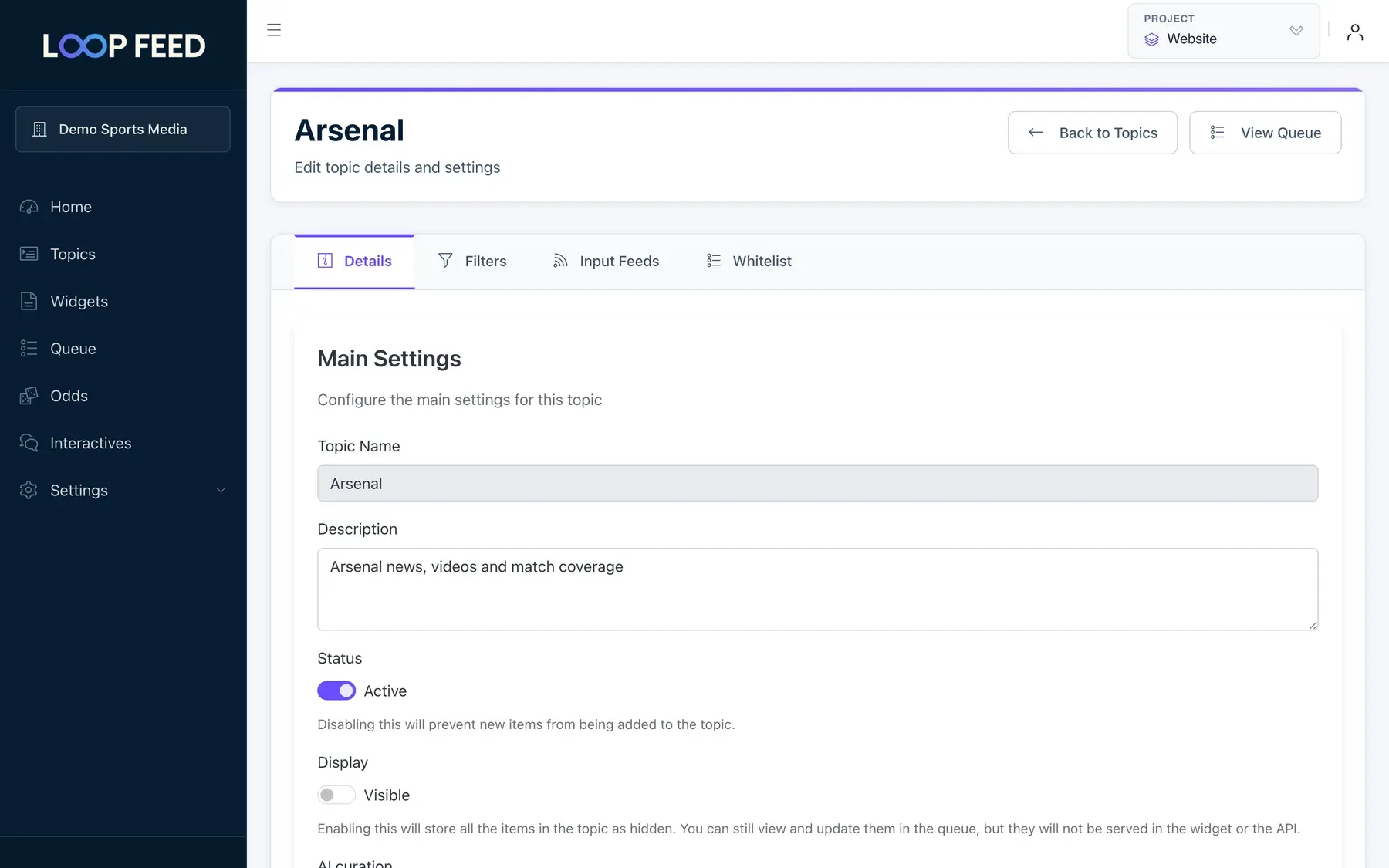
Main Settings
Section titled “Main Settings”| Setting | What it does |
|---|---|
| Description | A note for your team. It also appears in the topics list. |
| Status | Active topics collect new posts. Set it to Inactive to stop new items from being added; the queue keeps what it has. |
| Display | Hidden stores every new item as hidden: you can still review it in the queue, but it isn’t shown in widgets or the API until you show it. Use it when every item needs approval first. |
| AI curation | Shows On for your organization when your organization has AI curation. There is nothing to set per topic. |
| Topic JSON Feed | The topic’s public Content API address. Click Copy to copy it. |
Football Association
Section titled “Football Association”Attach the football Teams and Leagues / Tournaments the topic is about. Type at least two letters to search, then click a result to add it.
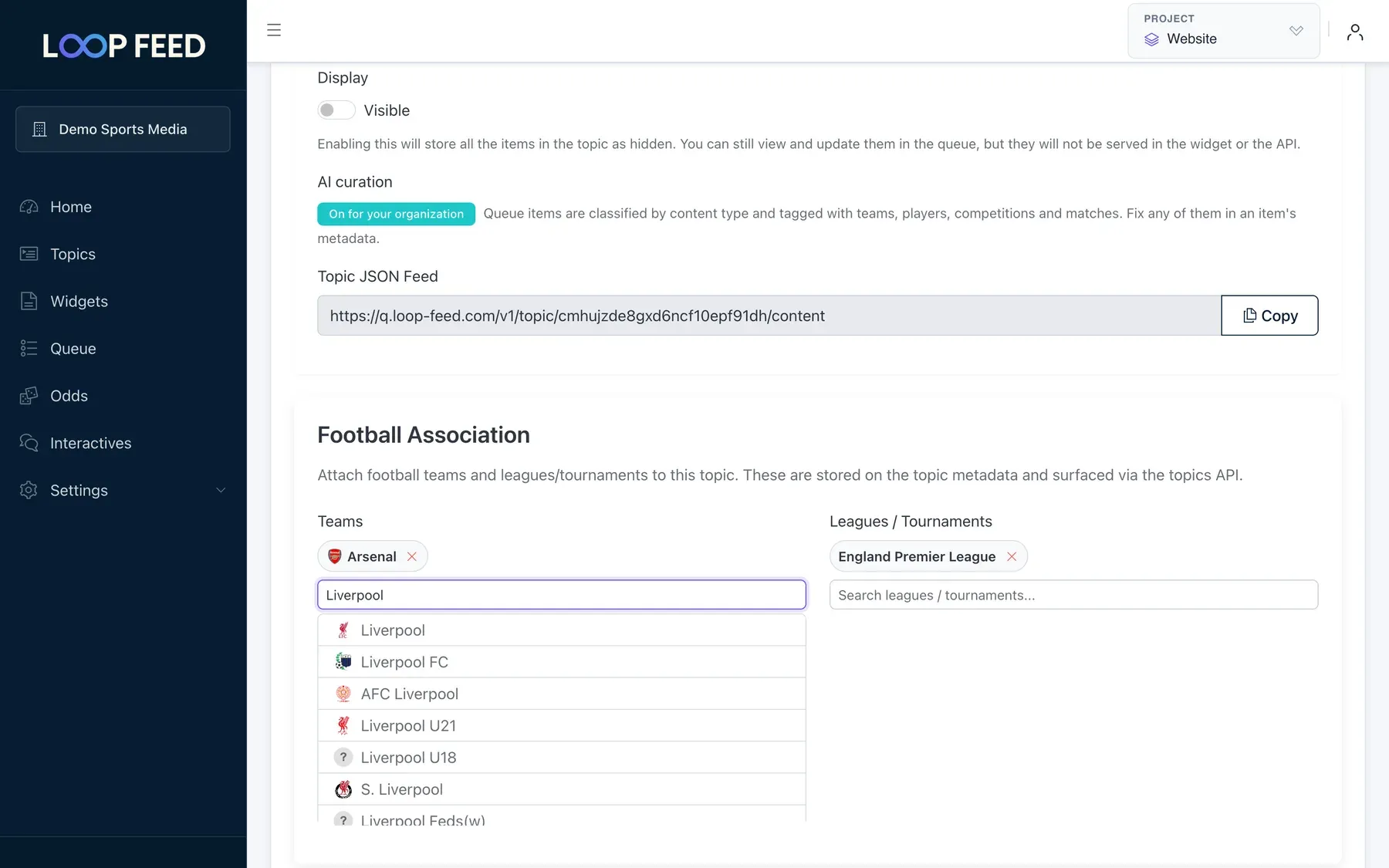
These help in two ways:
- The Content API can find your topics by team or competition.
- AI curation always considers these teams’ matches when it labels the topic’s posts.
Match & Custom Metadata
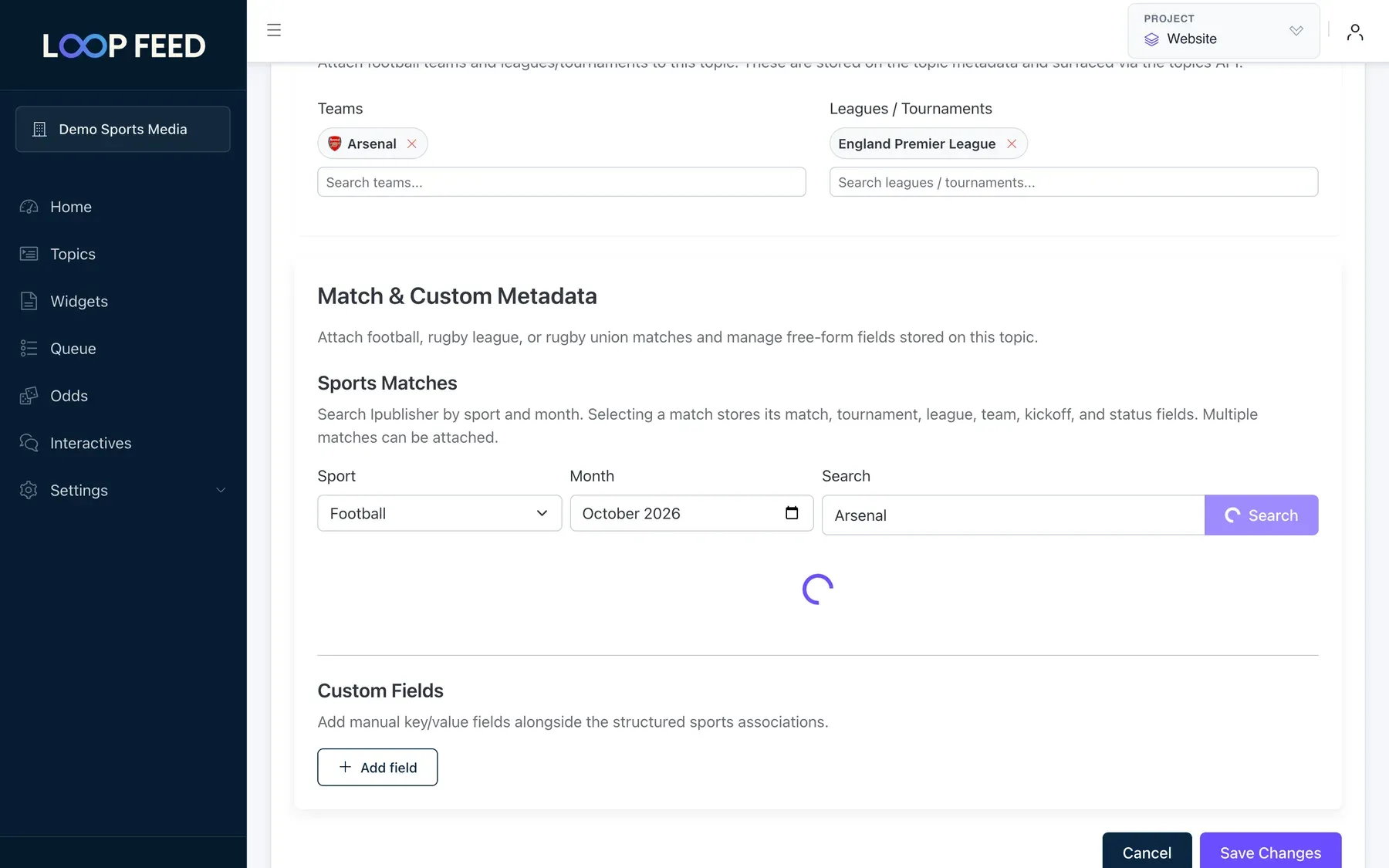
Section titled “Match & Custom Metadata”- Sports Matches: attach matches to the topic, for example for a match-day topic. Choose the Sport (football, rugby league or rugby union) and Month, type a team or competition name, click Search, then Add the matches you want.
- Custom Fields: your own key and value pairs, such as
desk=sport. They’re returned by the Content API and you can search topics by them.
Filters
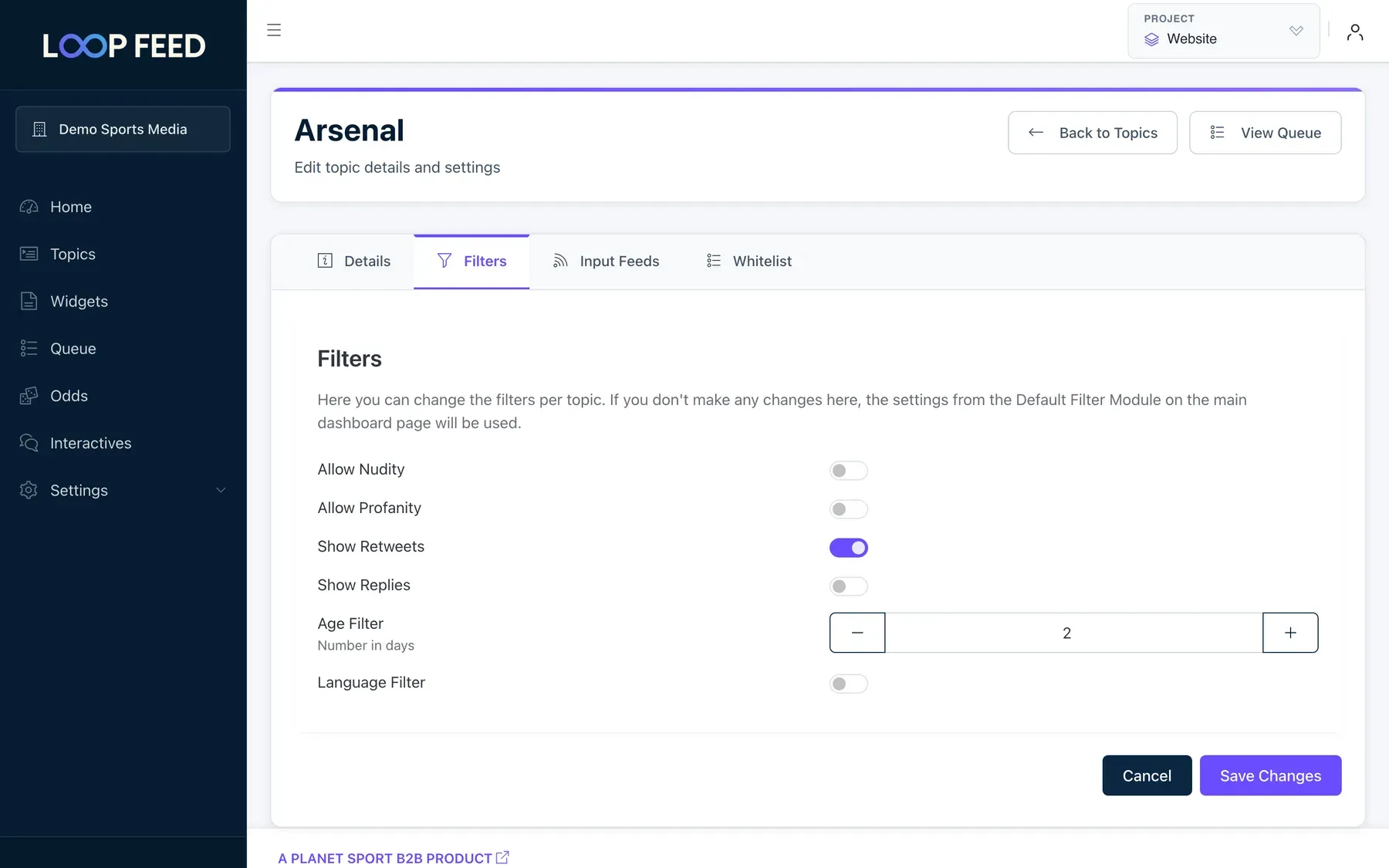
Section titled “Filters”The Filters tab decides which posts from the topic’s sources reach the queue.
| Filter | New topic | What it does |
|---|---|---|
| Age Filter | 60 days | Skip posts published more than this many days ago. At least 1. |
| Language Filter | Off | When on, keep only posts in the Languages you tick. |
Filters apply to new posts. Items already in the queue stay there.
Input feeds
Section titled “Input feeds”The Input Feeds tab lists the topic’s sources by platform. Open a platform to see its sources, when each last posted and when LoopFeed last checked it.
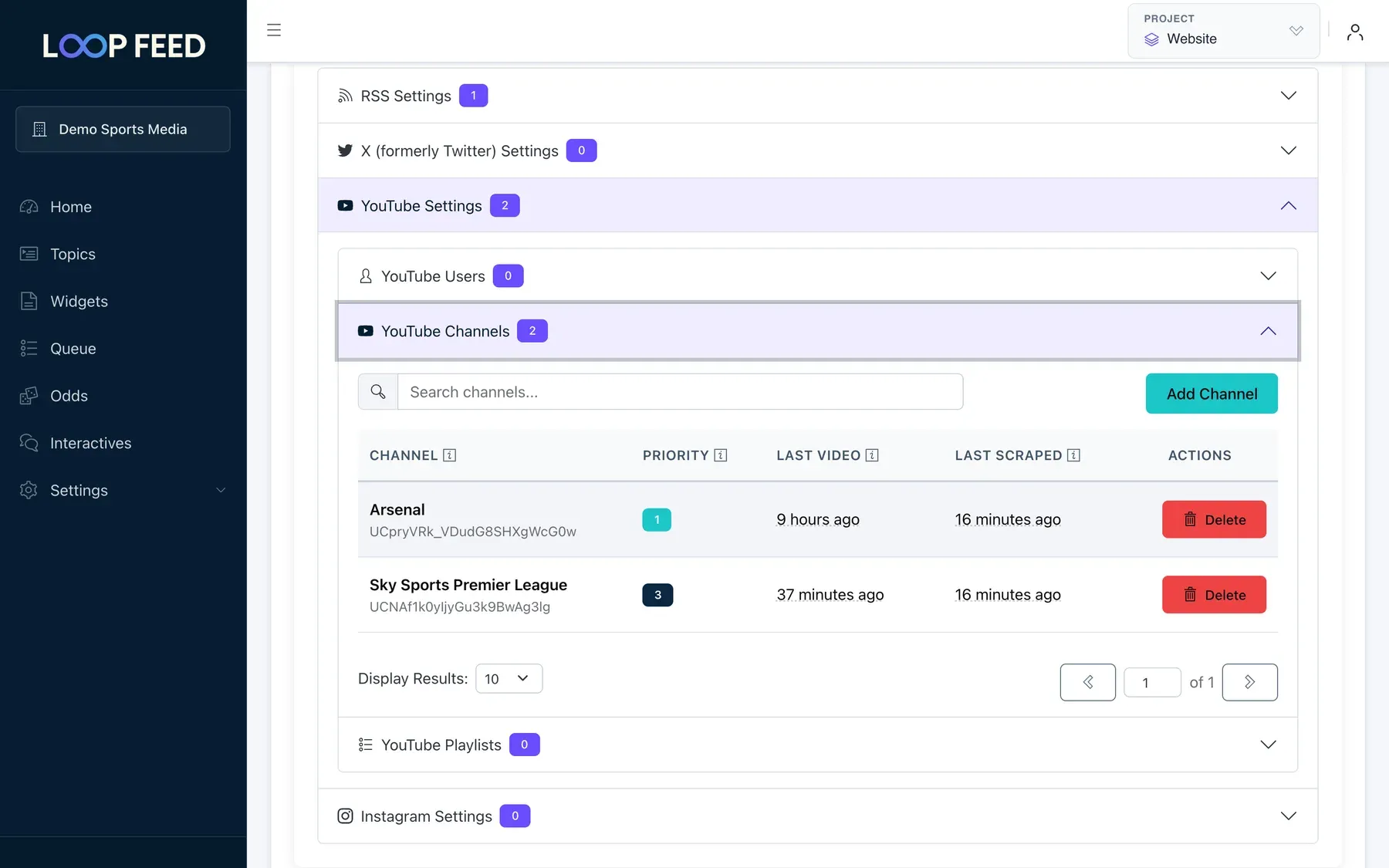
To add a source, open the platform, click its Add button, fill in the form and click Add:
| Platform | Button | What to enter | Example |
|---|---|---|---|
| RSS | Add New | The full feed address | https://feeds.bbci.co.uk/sport/football/rss.xml |
| X (Twitter) | Add User | The account’s username, with or without @ | premierleague |
| YouTube channel | Add Channel | The channel ID: UC followed by 22 characters. Not the channel URL. | UCG5qGWdu8nIRZqJ_GgDwQ-w |
| YouTube playlist | Add Playlist | The playlist ID, usually starting with PL. Not the URL. | PLrAXtmErZgOeiKm4sgNOknGvNjby9efdf |
| YouTube user | Add User | The channel’s username | mkbhd |
| Add User | The account’s username | premierleague |
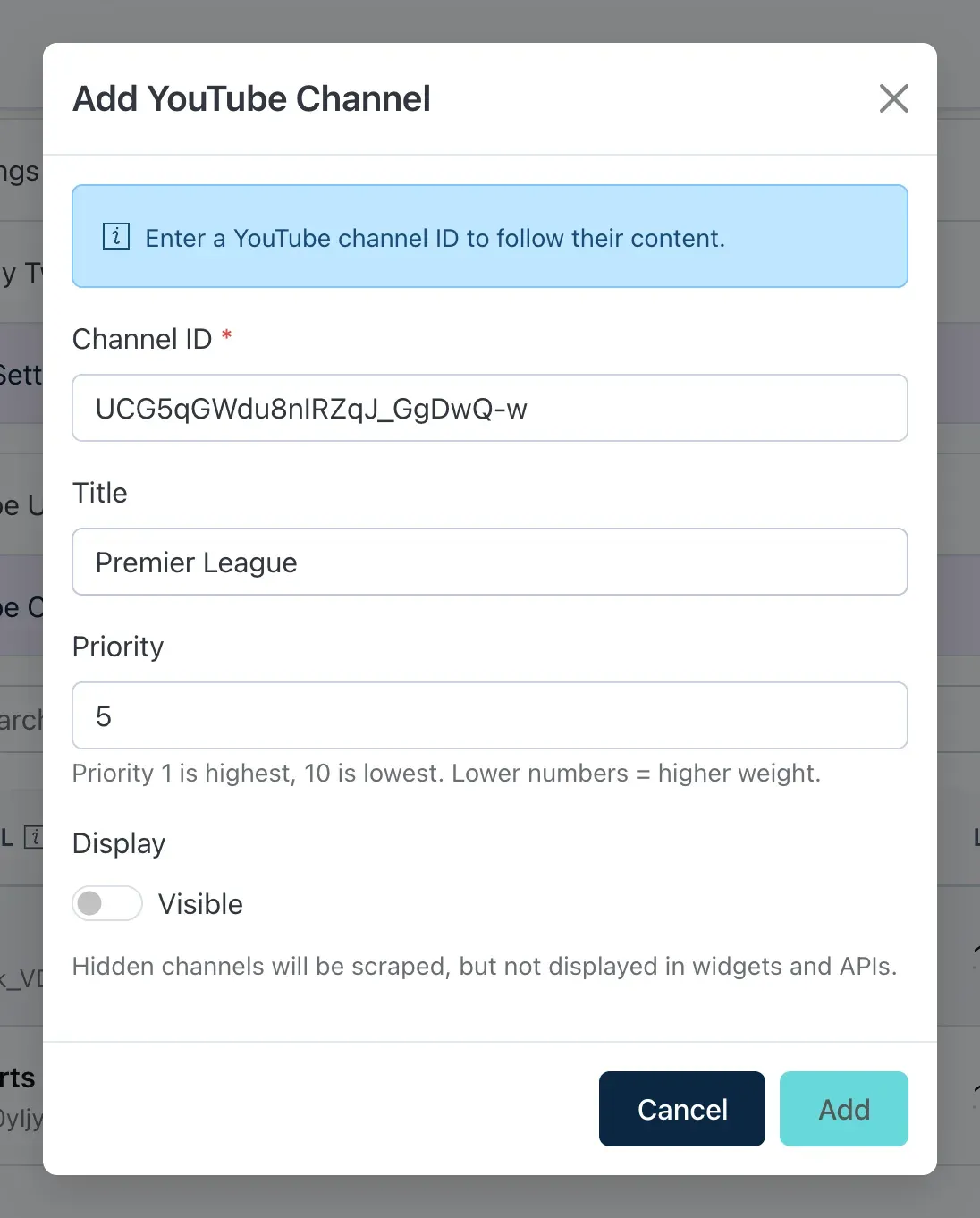
Every source also has:
- Title: an optional label for your team.
- Priority: from 1 (highest) to 10 (lowest). The default is 5.
- Display: Hidden keeps collecting the source’s posts but stores them as hidden. This is useful for a source you want to review before showing.
New sources show their first posts within a few minutes. To change a source, click its row. To remove it from the topic, click Delete.
Whitelist
Section titled “Whitelist”The whitelist keeps only posts that match at least one of your items. Leave it empty to keep everything that passes the filters.
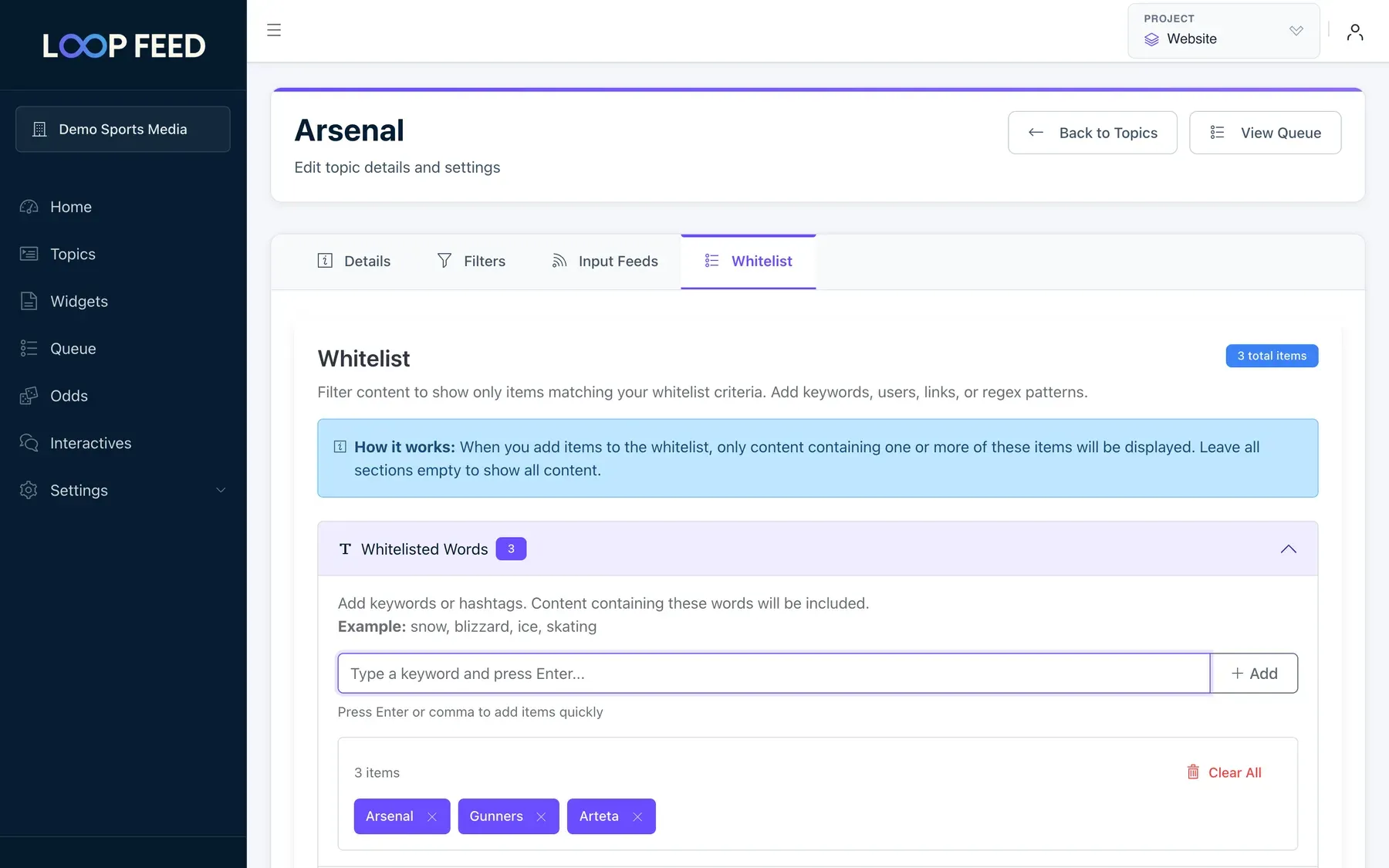
| Section | Keeps posts | Example |
|---|---|---|
| Whitelisted Words | whose title or text contains the word, in any letter case. Parts of words count too, so Art also matches Arteta. | Arsenal, #COYG |
| Whitelisted Users | posted by this account (its name or username) | bbcsport |
| Whitelisted Regular Expressions | whose title or text matches the pattern. Patterns are case-sensitive; start one with (?i) to ignore case. | (?i)\bgunners?\b |
Type an item and press Enter (or a comma) to add it, then click Save Changes. Click × on an item to remove it, or Clear All to empty a section.
Copy a topic
Section titled “Copy a topic”To start a topic from an existing one, choose Copy in its row menu. Enter a New Topic Name, choose the Target Project (any project of your organization) and click Copy.
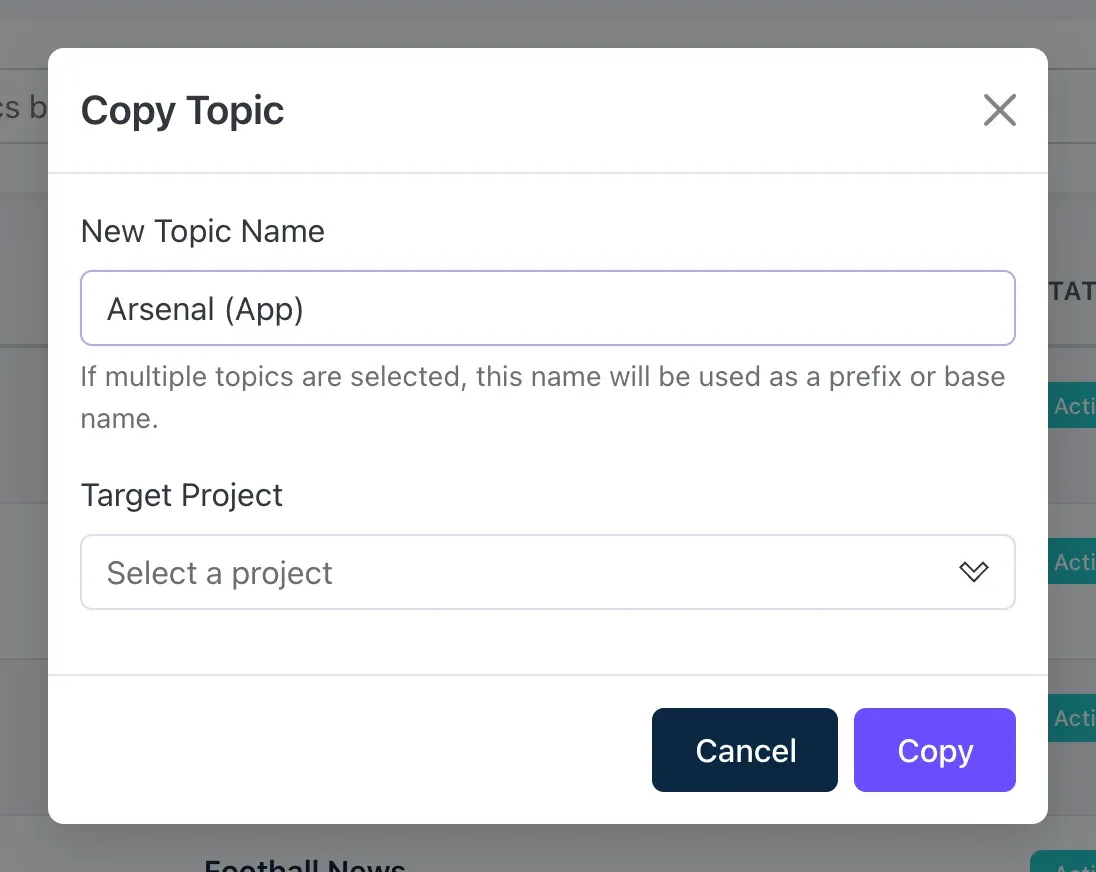
The copy has the same settings, filters, whitelist and sources. It doesn’t copy the queue items or the teams, competitions, matches and custom fields on the Details tab. The dashboard then switches to the target project.
Stop a topic
Section titled “Stop a topic”To stop a topic from collecting new posts, set its Status to Inactive on the Details tab. Widgets and the API keep showing its existing items. To take those off your site too, remove the topic from its widgets, or hide the items in the queue.