

1. Create Topics
Set up content sources and filtering rules
Welcome to LoopFeed! This guide will help you get started with creating your first topic, managing content, and embedding widgets on your website.
LoopFeed follows a simple three-step workflow:
1. Create Topics
Set up content sources and filtering rules
2. Manage Queues
Curate and organize your aggregated content
3. Create Widgets
Build embeddable components for your website
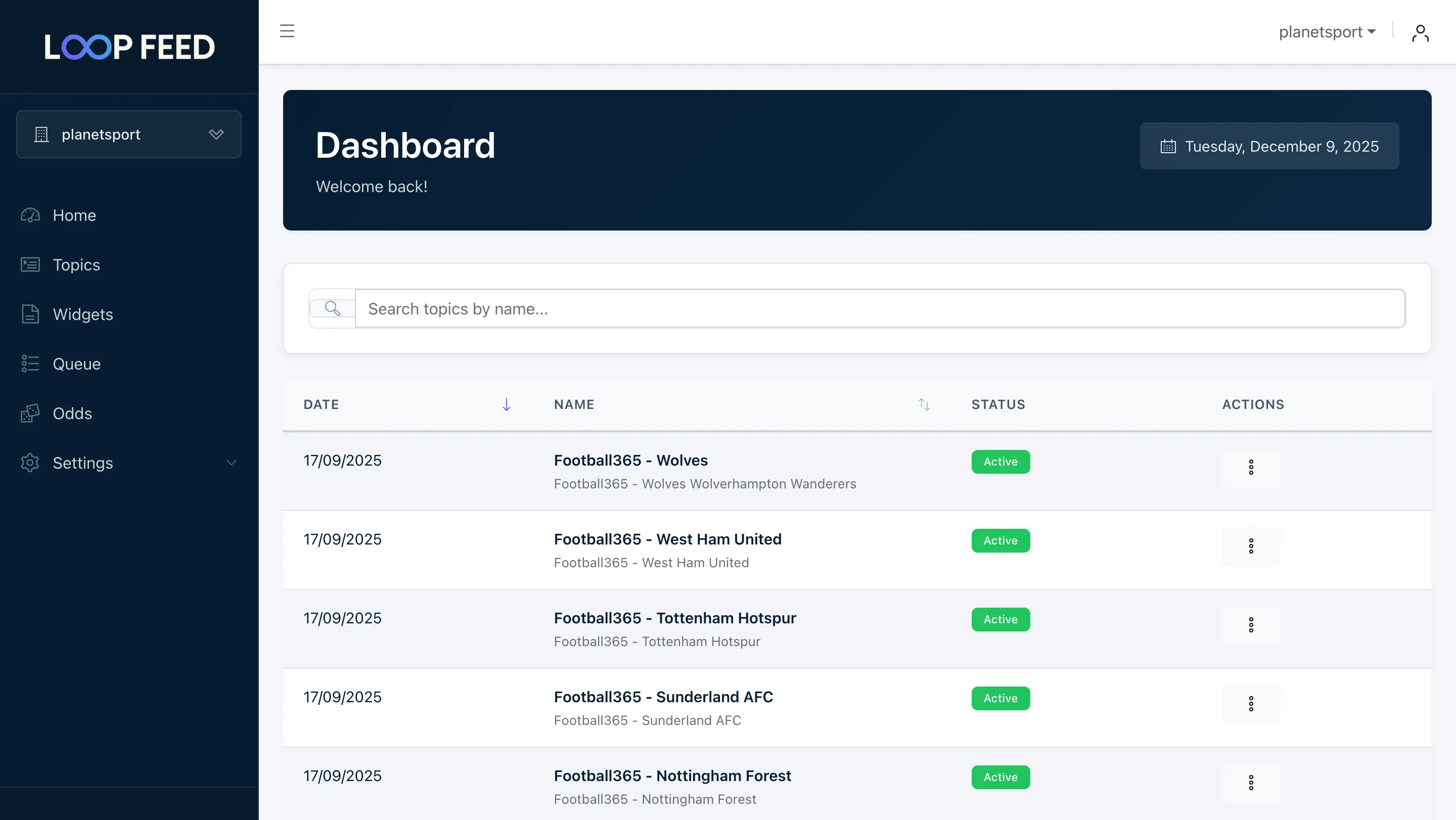
Access the Dashboard
Log into your LoopFeed account: https://app.loop-feed.com
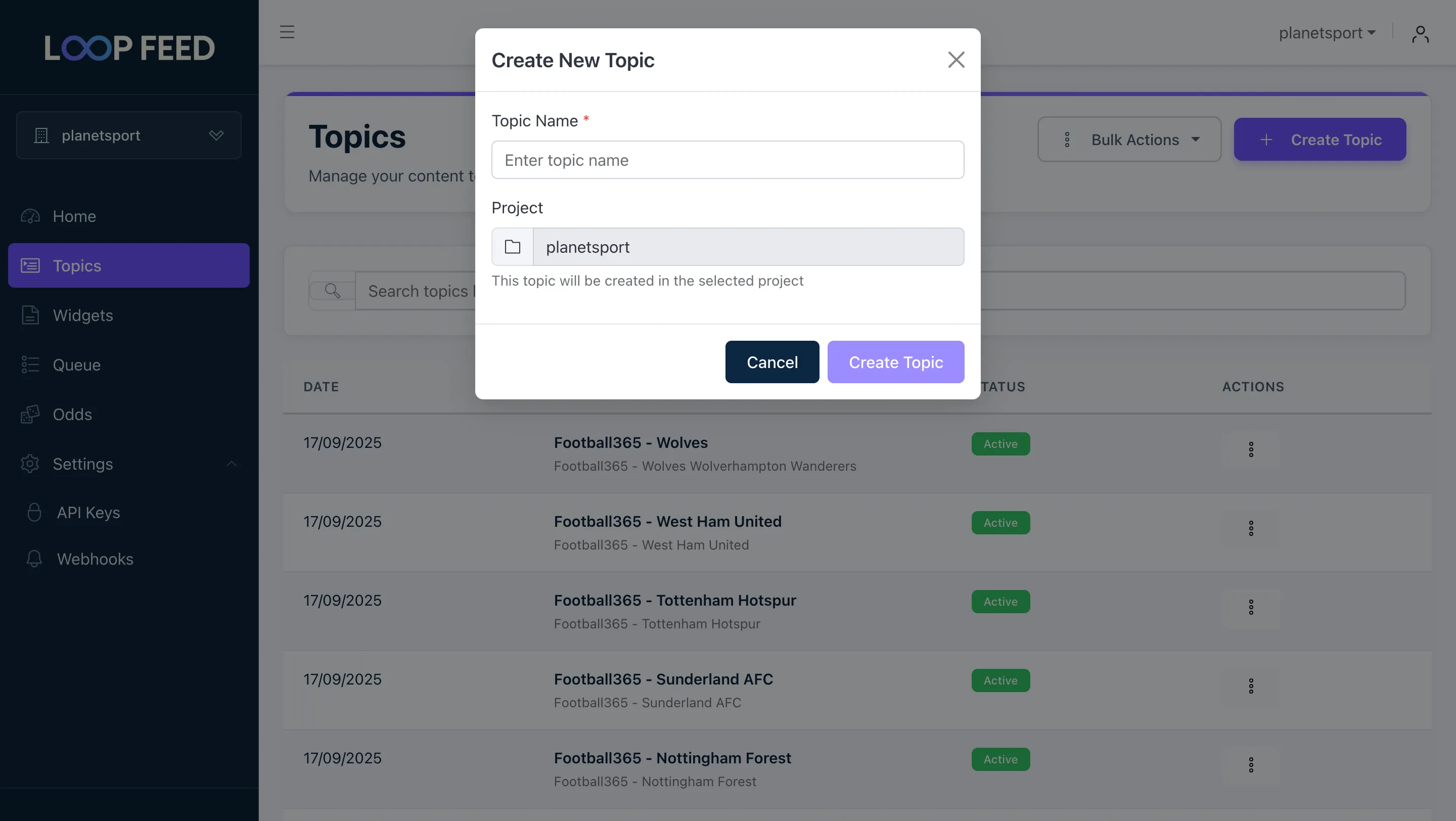
Create a New Topic
Navigate to Topics menu and click the “Create Topic” button. Give your topic a name and save it.
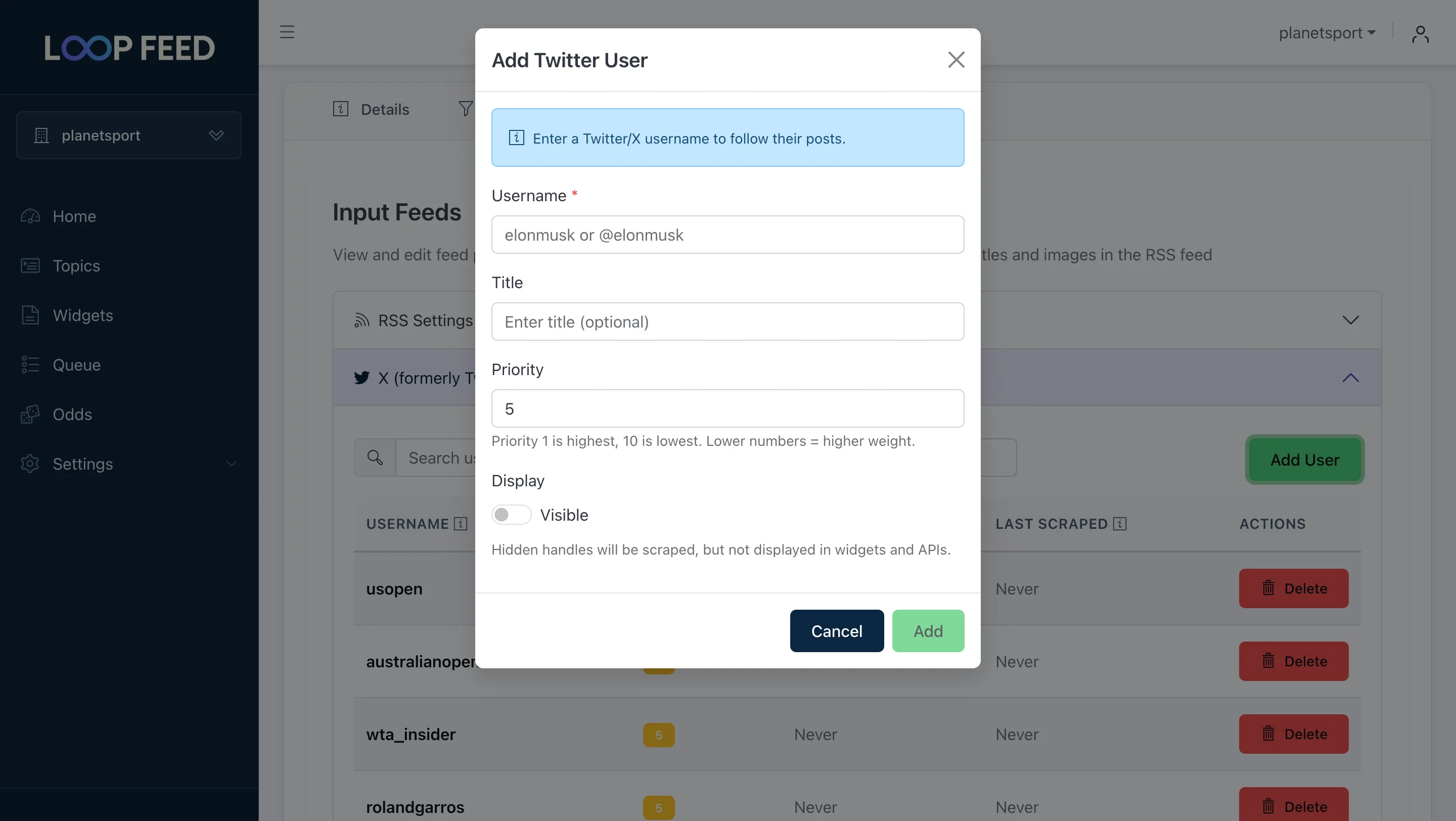
Configure Sources
Navigate to “Bulk Import” tab and add one or more content sources to your topic. Each source type has specific configuration options. This is an optional step and you can add sources later.
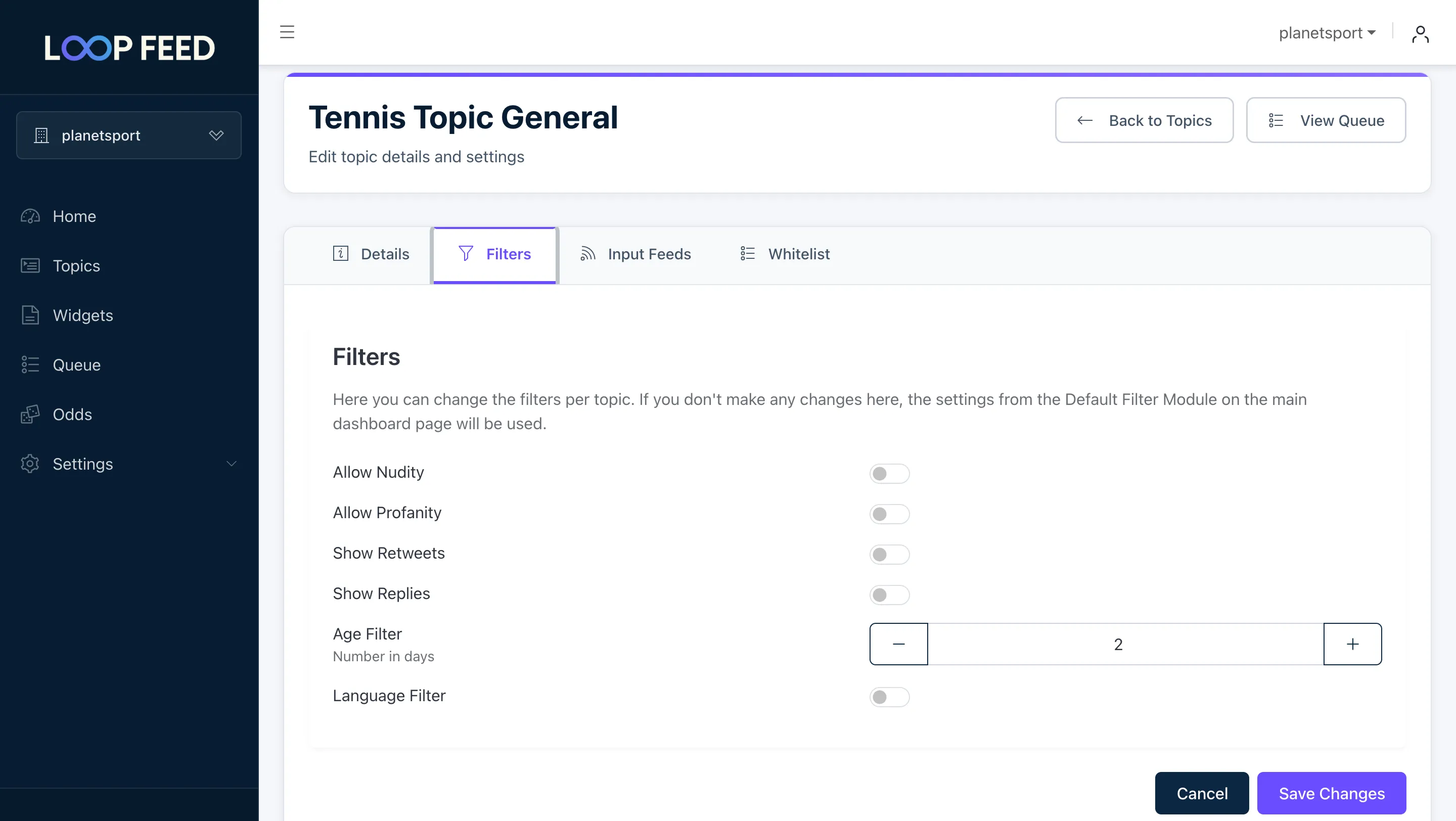
Configure Filters
Navigate to “Filters” tab and configure filters to automatically curate content. This is an optional step and you can add filters later.
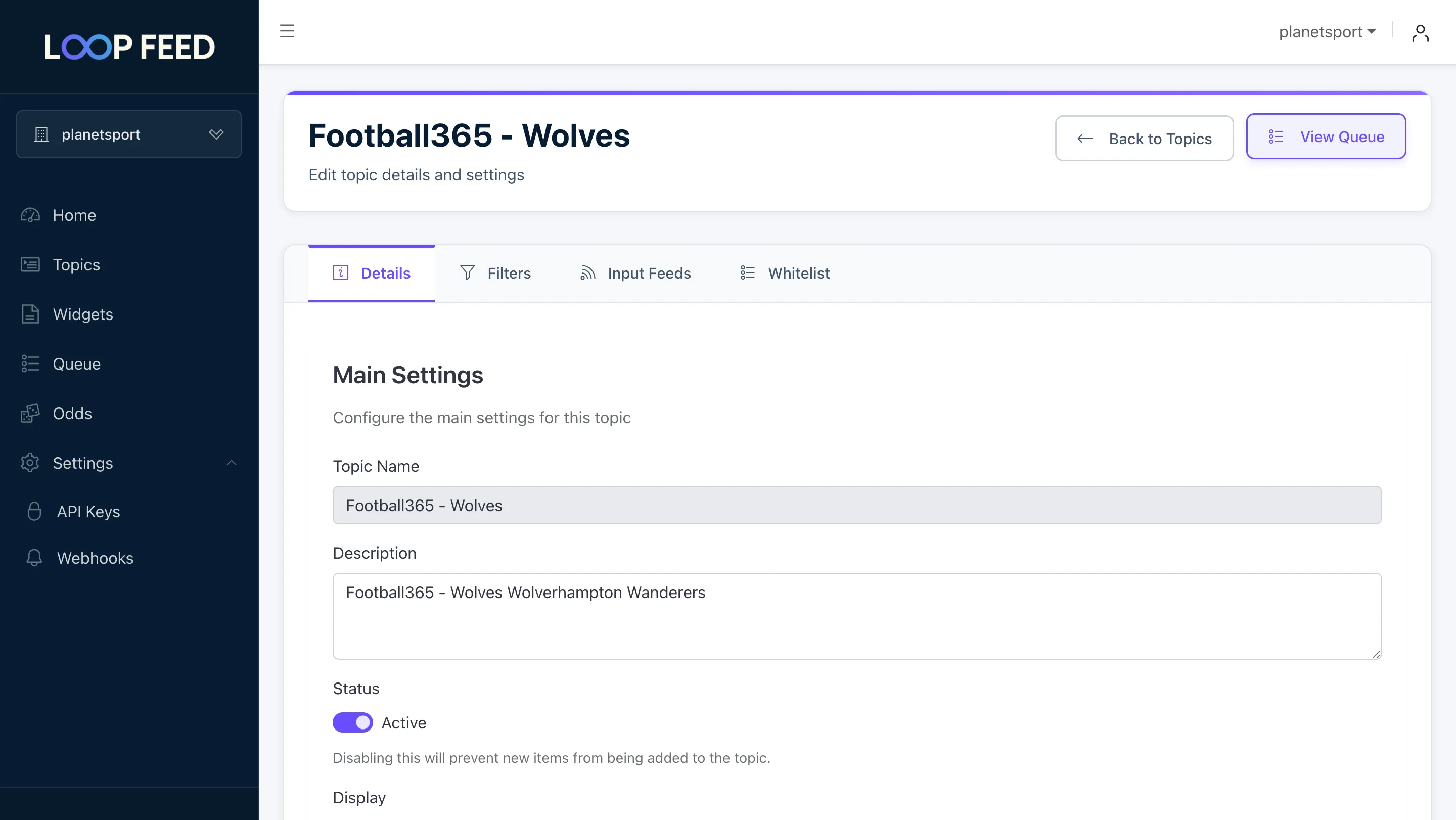
Once your topic is created, you can manage the aggregated content in the queue:
Access the Queue
Navigate to your topic by clicking on the topic name in the topics list and click “View Queue” button to see all aggregated content.
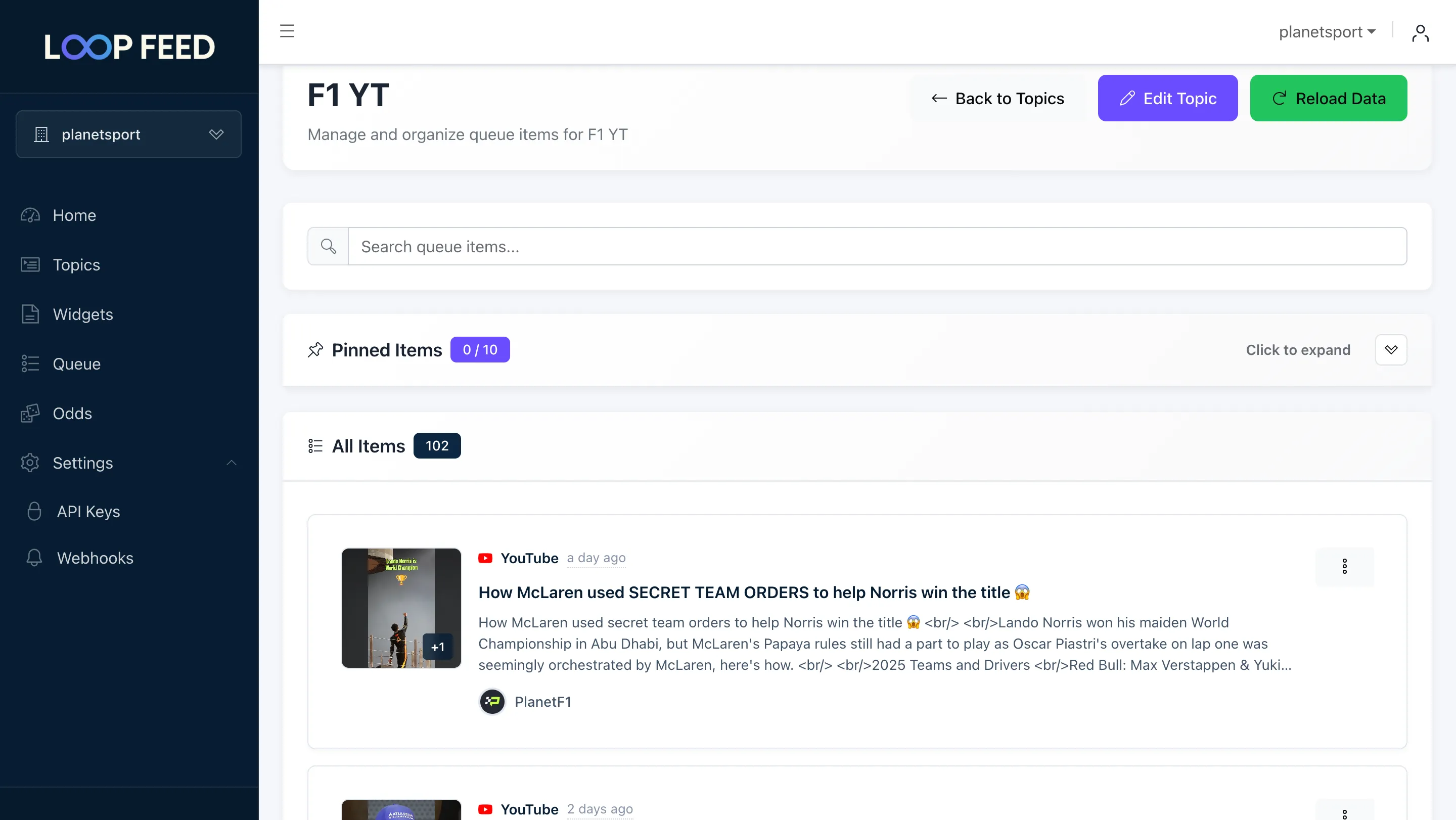
Manual Curation (Optional)
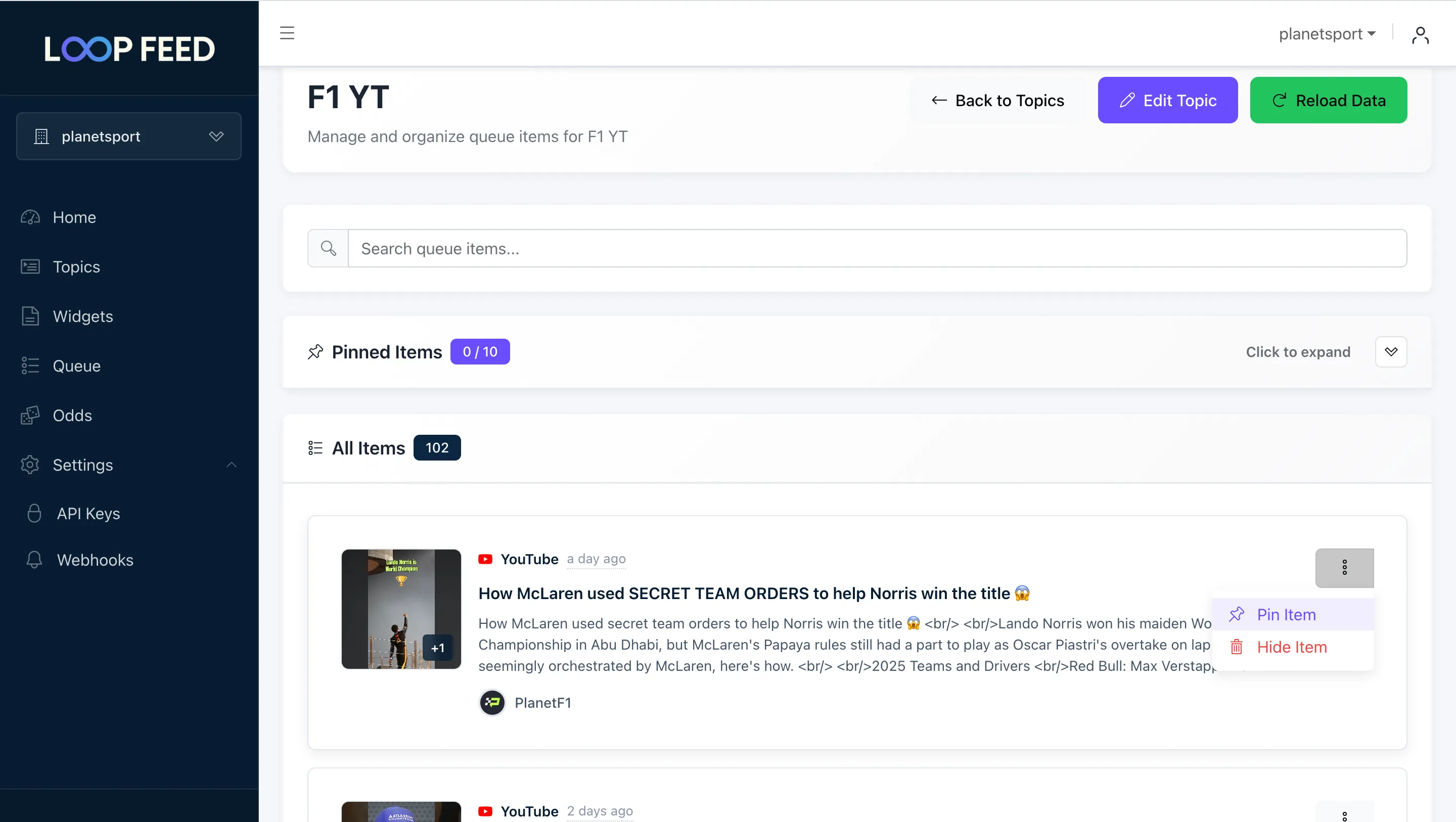
For each feed item, you can:
Navigate to Widgets
Go to the Widgets section from the main menu.

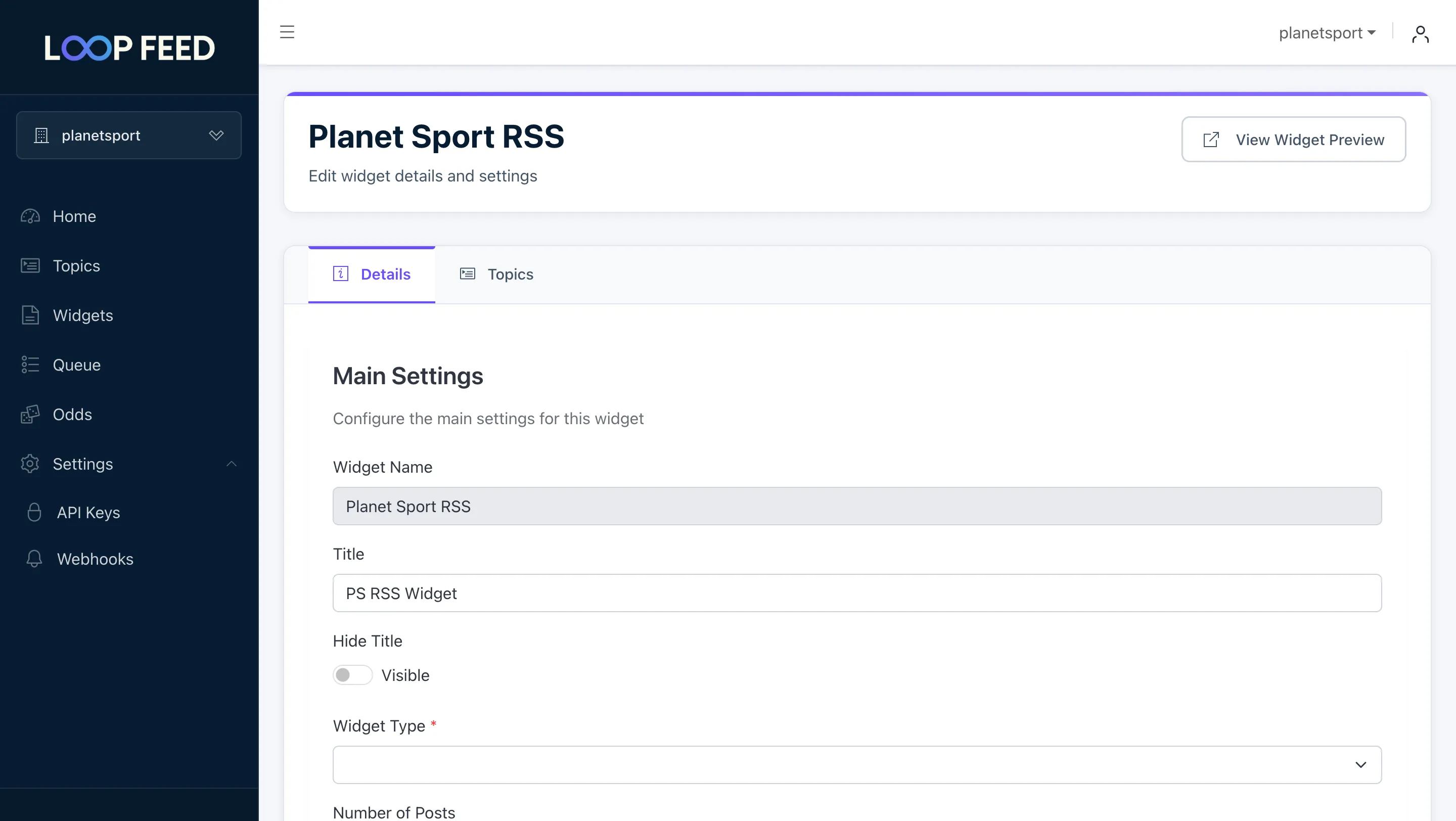
Create New Widget
Click “Create New”, give your widget a name and choose your widget type:
Attach Topics
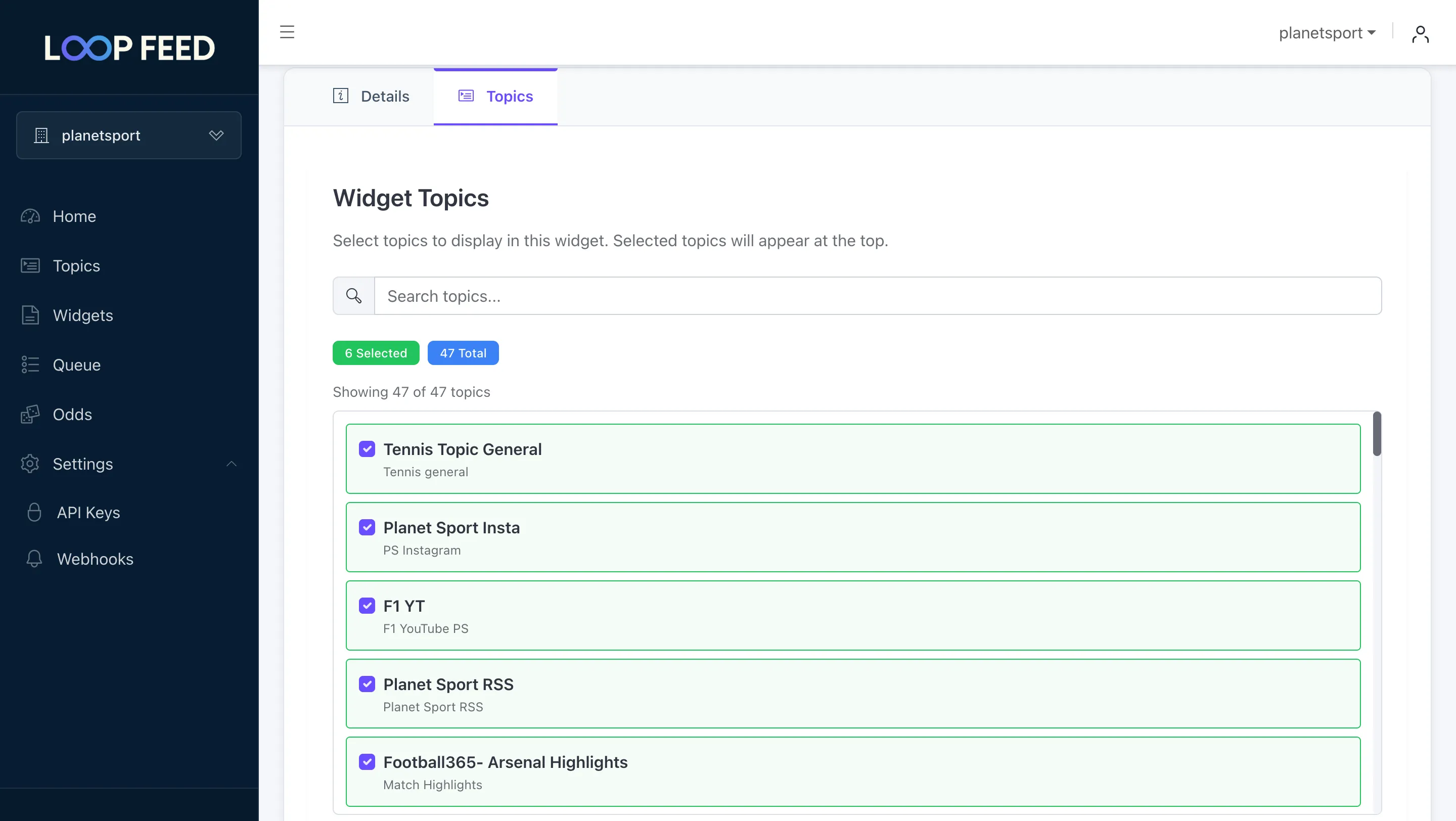
Click on the “Topics” tab and select one or more topics to include in your widget. Content will be aggregated from all selected topics. You can select multiple topics to create a widget that shows content from multiple topics.
Get Your Embed Code
Save the widget and open it by clicking on the widget name in the widgets list. Copy the generated JavaScript snippet and paste it into your website’s HTML.
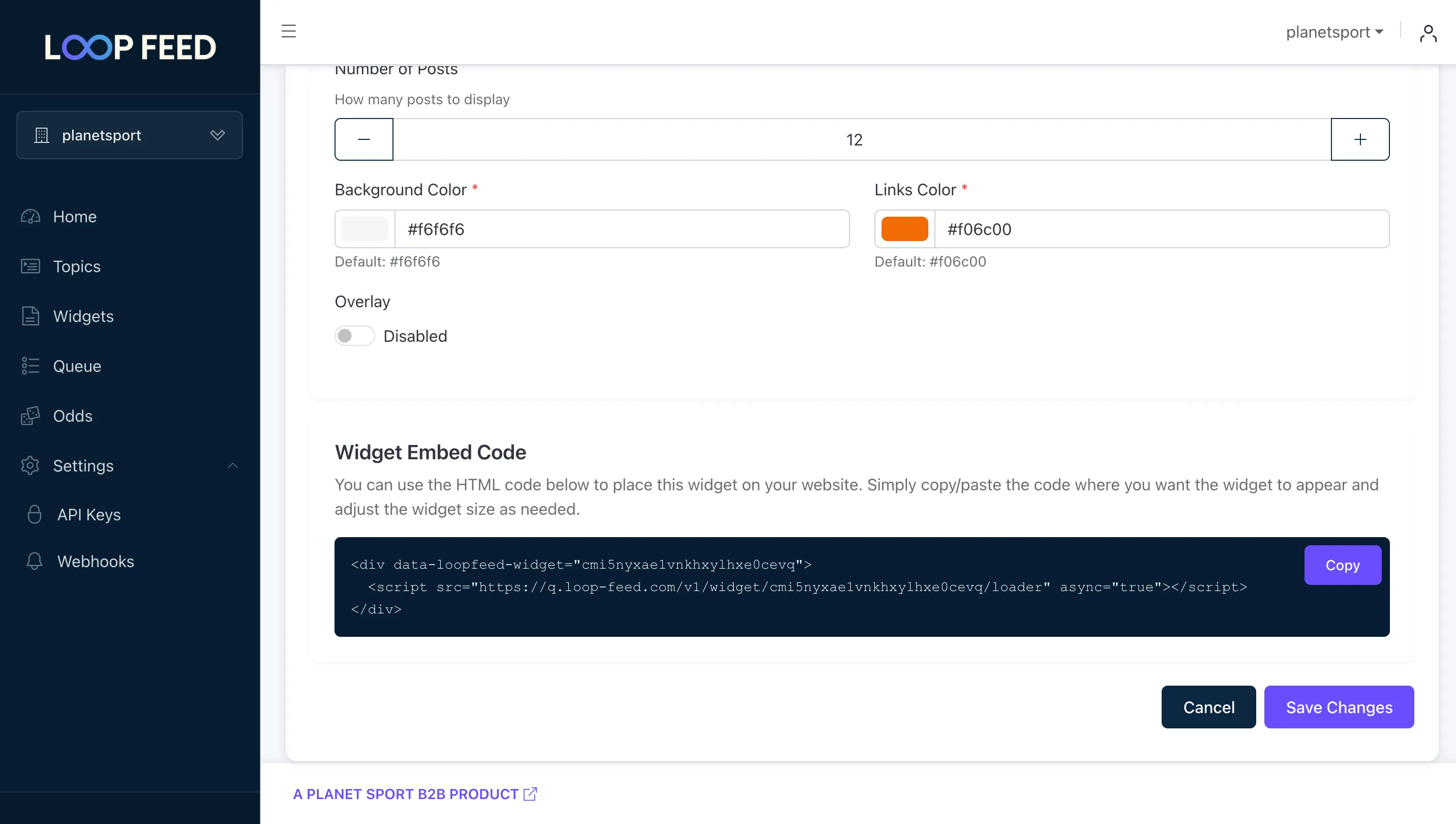
Add the widget to any HTML page:
<!-- Basic embed example --><div data-loopfeed-widget='<widget-id>'> <script src='https://q.loop-feed.com/v1/widget/<widget-id>/loader' async='true' ></script></div>For custom integrations, you can access your topic data directly via JSON API:
Get API URL
Go to a specific topic by clicking on the topic name in the topics list and copy the API URL.
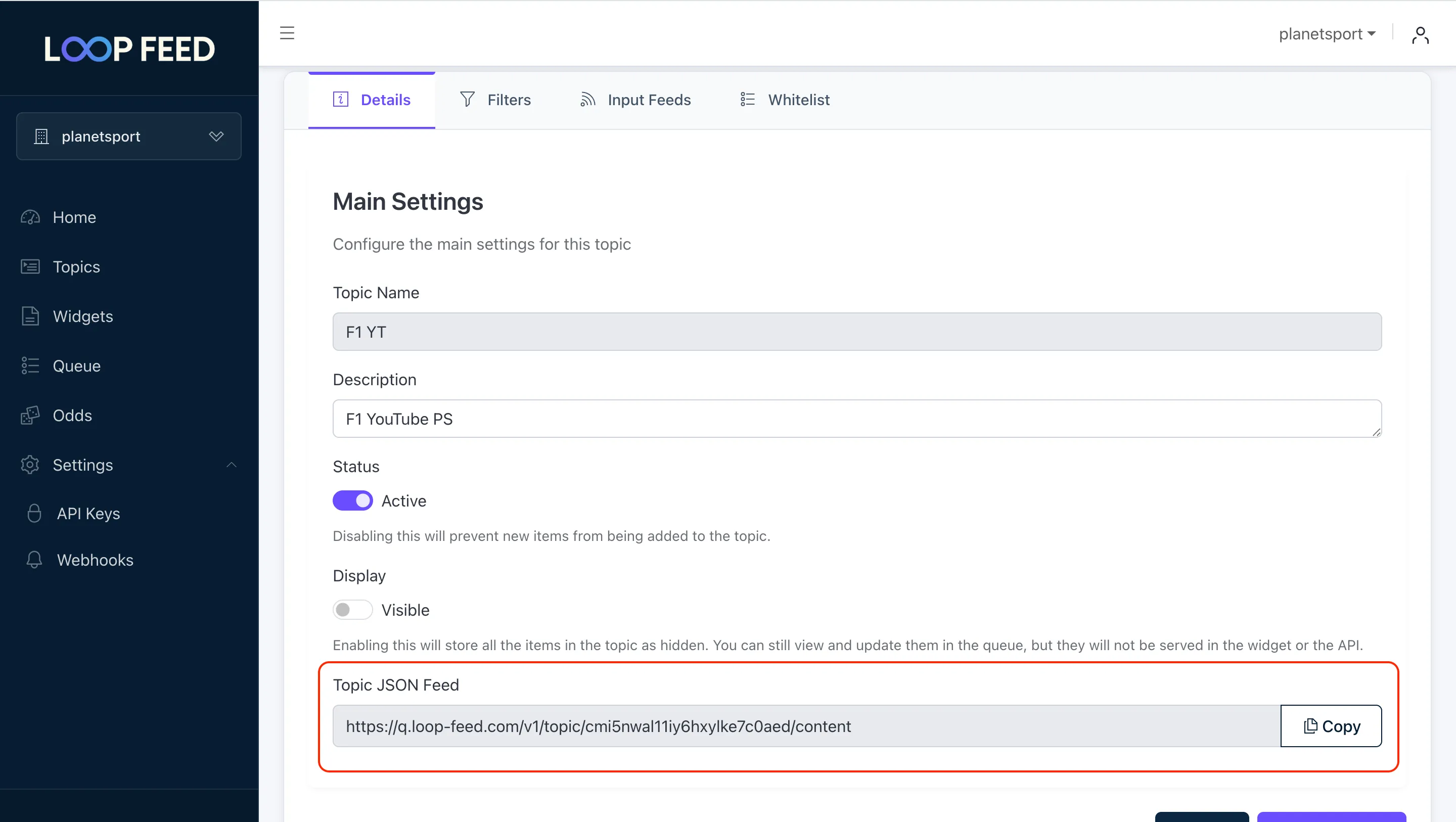
Make API Calls
fetch('https://q.loop-feed.com/v1/topic/<topic-id>/content') .then(response => response.json()) .then(data => { // Use your aggregated content console.log(data); });API Integration
Build custom integrations using the LoopFeed REST API.
Having trouble? Check out our detailed API documentation for more comprehensive information.